Note
Access to this page requires authorization. You can try signing in or changing directories.
Access to this page requires authorization. You can try changing directories.
Use properties on a basic cell value when you want a cell to keep its original string, double, or Boolean value and also expose extra details. For example, a restaurant bill can stay a number for calculations while also showing Food, Drinks, Tax, and Tip in the data type card and in formulas.
This article shows how to create a basic value with properties, update an existing value, format number values, and add nested data types.
- Start with Overview of data types in Excel add-ins if you're new to Excel data types.
- Review the JSON schema in Use data types in Excel add-ins.
- Use Create linked entity data types in Excel add-ins when your data comes from an external source and should refresh independently.
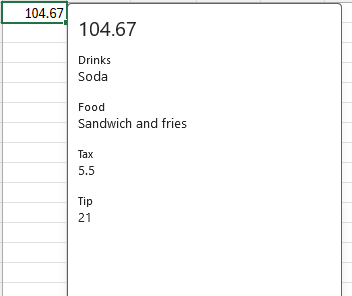
The following example shows the number 14.67 with added fields named Drinks, Food, Tax, and Tip.
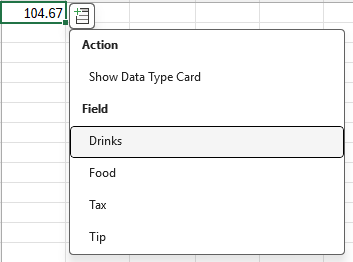
When users open the data type card, they can see the extra fields.
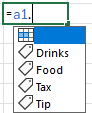
Basic values with properties can also be referenced in formulas by using dot notation.
Create a cell value with properties
Use Range.valuesAsJson to create a value and define its properties in one assignment. The following example writes a number to A1 and adds bill details as properties.
async function createNumberProperties() {
  await Excel.run(async (context) => {
    const sheet = context.workbook.worksheets.getActiveWorksheet();
    const range = sheet.getRange("A1");

    range.valuesAsJson = [
      [
        {
          type: Excel.CellValueType.double,
          basicType: Excel.RangeValueType.double,
          basicValue: 14.67,
          properties: {
            Food: {
              type: Excel.CellValueType.string,
              basicType: Excel.RangeValueType.string,
              basicValue: "Sandwich and fries"
            },
            Drinks: {
              type: Excel.CellValueType.string,
              basicType: Excel.RangeValueType.string,
              basicValue: "Soda"
            },
            Tax: {
              type: Excel.CellValueType.double,
              basicType: Excel.RangeValueType.double,
              basicValue: 5.5
            },
            Tip: {
              type: Excel.CellValueType.double,
              basicType: Excel.RangeValueType.double,
              basicValue: 21
            }
          }
        }
      ]
    ];

    await context.sync();
  });
}
Note
Some cell values change based on a user's locale. The valuesAsJsonLocal property offers localization support and is available on all the same objects as valuesAsJson.
Add properties to an existing value
Use this pattern when a cell already contains a basic value and you want to enrich it without changing its underlying type. First, read the value by using valuesAsJson. Then verify that the value is a string, double, or Boolean before you add properties.
The following example gets the number in A1, preserves any existing properties, and adds a Precision property.
async function addPropertyToNumber() {
  await Excel.run(async (context) => {
    const sheet = context.workbook.worksheets.getActiveWorksheet();
    const range = sheet.getRange("A1");

    range.load("valuesAsJson");
    await context.sync();

    const cellValue = range.valuesAsJson[0][0] as any;

    // Only apply this property to a double.
    if (cellValue.basicType === Excel.RangeValueType.double) {
      cellValue.properties = {
        ...(cellValue.properties ?? {}),
        Precision: {
          type: Excel.CellValueType.double,
          basicValue: 4
        }
      };

      range.valuesAsJson = [[cellValue]];
      await context.sync();
    }
  });
}
Choose a basic value or an entity value
Adding properties to string, Boolean, and double basic types is similar to adding properties to entity values, but the behavior is different in a few important ways.
- Use a basic value with properties when formulas should continue to treat the cell as its underlying value. Basic types don't have error fallbacks, so calculations can always proceed. For example,
=SUM(A1:A3)still returns6ifA1is a double with properties andA2andA3are standard numbers. - When a calculation uses a basic value, the result includes the underlying value only. The result doesn't keep the source properties.
- If you don't specify an icon for a basic value, the cell shows no icon. Entity values show a default icon when no icon is specified.
Formatted number values
You can apply number formatting to values of type CellValueType.double by using the numberFormat property. The following example creates a currency value and adds a descriptive property.
async function createCurrencyValue() {
  await Excel.run(async (context) => {
    const sheet = context.workbook.worksheets.getActiveWorksheet();
    const range = sheet.getRange("A1");

    range.valuesAsJson = [
      [
        {
          type: Excel.CellValueType.double,
          basicType: Excel.RangeValueType.double,
          basicValue: 24,
          numberFormat: "$0.00",
          properties: {
            Name: {
              type: Excel.CellValueType.string,
              basicValue: "Price"
            }
          }
        }
      ]
    ];

    await context.sync();
  });
}
This number format is the default format for the value. If the user, or other code, applies a different format to the cell, that format overrides the value's numberFormat.
Customize the card layout
Basic values with properties use a default data type card. To show properties in a more helpful way, add the layouts property to the JSON description and define a custom card layout.
For layout options and examples, see Use cards with cell value data types.
Nested data types
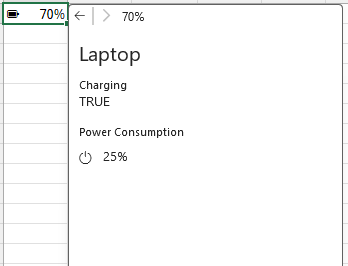
You can nest other data types inside a basic value, including entity values and additional string, double, and Boolean values. The following example writes a computer battery charge value to A1, then adds a nested entity that describes the computer and its power settings.
Important
When nesting entity values, the referencedValues array is only supported on the root-level entity. Nested entities must not define their own referencedValues. If a nested entity includes referencedValues, Excel rejects the cell value and returns the #VALUE! error in that cell. To reference additional values from a nested entity, use ReferenceCellValue indices that point to the root entity's referencedValues array. For more information, see Entity values.
async function createNumberWithNestedEntity() {
  await Excel.run(async (context) => {
    const sheet = context.workbook.worksheets.getActiveWorksheet();
    const range = sheet.getRange("A1");

    range.valuesAsJson = [
      [
        {
          type: Excel.CellValueType.double,
          basicType: Excel.RangeValueType.double,
          layouts: {
            compact: {
              icon: "Battery10"
            }
          },
          basicValue: 0.7,
          numberFormat: "00%",
          properties: {
            Computer: {
              type: Excel.CellValueType.entity,
              text: "Laptop",
              properties: {
                "Power Consumption": {
                  type: Excel.CellValueType.double,
                  basicType: Excel.RangeValueType.double,
                  basicValue: 0.25,
                  numberFormat: "00%",
                  layouts: {
                    compact: {
                      icon: "Power"
                    }
                  },
                  properties: {
                    Plan: {
                      type: Excel.CellValueType.string,
                      basicType: Excel.RangeValueType.string,
                      basicValue: "Balanced"
                    }
                  }
                },
                Charging: {
                  type: Excel.CellValueType.boolean,
                  basicType: Excel.RangeValueType.boolean,
                  basicValue: true
                }
              }
            }
          }
        }
      ]
    ];

    await context.sync();
  });
}
The following image shows the value and the data type card for the nested laptop entity.
Compatibility
On previous versions of Excel that don't support the data types feature, users see an Unavailable Data Type warning. The value still appears in the cell and continues to work with formulas and other Excel features. If the value is a formatted number, calculations use the basicValue instead of the formatted number.
On Excel versions older than Office 2016, the value appears in the cell with no error and is indistinguishable from a basic value.
See also
Collaborate with us on GitHub
The source for this content can be found on GitHub, where you can also create and review issues and pull requests. For more information, see our contributor guide.
Office Add-ins