Note
Access to this page requires authorization. You can try signing in or changing directories.
Access to this page requires authorization. You can try changing directories.
Microsoft Fabric provides a unified Analyze data with menu that gives you a consistent way to move from data to analysis across Lakehouse, Warehouse, and Eventhouse. Instead of navigating different menus for each workload, you can start your analysis from a single, predictable entry point.
From a KQL database in Eventhouse, the Analyze data with action lets you:
- Analyze data using SQL analytics endpoint, when OneLake availability and sync are enabled.
- Open a new or existing notebook with the database automatically added to the notebook environment.
- Launch analysis actions from a single location, without switching contexts or reconfiguring access.
This integration provides a consistent experience regardless of where your data lives. The same Analyze data with menu is available in Lakehouse, Warehouse, and Eventhouse, so the way you analyze data looks and feels the same across all workloads. Whether you're doing exploratory analysis, advanced transformations, or experimentation, you can get started quickly from a familiar starting point.
Tip
To use KQL queries to analyze the data, use the KQL queryset embedded in your Eventhouse. See Explore your KQL database with the embedded KQL queryset.
Note
The Analyze data with menu is not available for read-only monitoring eventhouses.
Prerequisites
- A workspace with a Microsoft Fabric-enabled capacity
- An eventhouse in your workspace
- A KQL database in your eventhouse
- To Analyze data by using the SQL analytics endpoint your Eventhouse must have OneLake availability and sync enabled. For details, see Eventhouse OneLake Availability.
Analyze data by using the SQL analytics endpoint
In your Fabric workspace, go to your KQL database.
Select Analyze data with > SQL analytics endpoint.
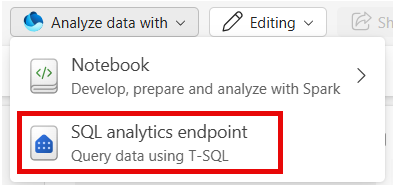
The Lakehouse SQL analytics endpoint opens with a new Eventhouse connection.
You can see Eventhouse in the explorer pane, where the KQL database is listed.
Query the SQL analytics endpoint and analyze the data in your KQL database by using T-SQL.
Delete the SQL analytics endpoint connection
When you analyze data from a KQL database using the SQL analytics endpoint, a new connection is created in the SQL analytics endpoint explorer pane. If you no longer need this connection, you can delete it without impacting your original KQL database or eventhouse.
Browse to the Worskpace > Eventhouse > KQL database. This is the KQL database that you connected to the SQL analytics endpoint.
Open the KQL database more actions menu, and right-click Settings.
From the KQL database settings, select SQL analytics endpoint. This shows you that the SQL analytics endpoint connection is enabled.
Turn the SQL analytics endpoint toggle off.
Analyze data by using a notebook
In your Fabric workspace, go to your KQL database.
Select Analyze data with > Notebook.

Select New Notebook or Existing Notebook.
If you select New Notebook, a new notebook opens with the KQL database automatically added to your notebook environment.
If you select Existing Notebook, the OneLake catalog opens with a list of your existing notebooks. Select the notebook you want to use for data analysis.
The notebook opens with the KQL database automatically added to your notebook environment.
You can see the Eventhouse connection in the explorer pane, where the KQL database is listed.
Use the notebook to query and analyze the data in your KQL database by using your preferred language (Python, Spark SQL, or Scala).
(Optional) Add additional KQL databases or data sources to your notebook environment, such as a Lakehouse or Warehouse, to combine data from multiple sources in your analysis.