Note
Access to this page requires authorization. You can try signing in or changing directories.
Access to this page requires authorization. You can try changing directories.
This article describes how to get Azure Blob Storage events into Fabric Real-Time hub.
An event is the smallest amount of information that fully describes that something happened in a system. Azure Blob Storage events are triggered when a client creates, replaces, deletes a blob, etc. By using the Real-Time hub, you can convert these events into continuous data streams and transform them before routing them to various destinations in Fabric.
| Event name | Description |
|---|---|
| Microsoft.Storage.BlobCreated | Triggered when a blob is created or updated. |
| Microsoft.Storage.BlobDeleted | Triggered when a blob is deleted. |
| Microsoft.Storage.BlobRenamed | Triggered when a blob is renamed. |
| Microsoft.Storage.BlobTierChanged | Triggered when the blob access tier is changed. |
| Microsoft.Storage.DirectoryCreated | Triggered when a directory is created. |
| Microsoft.Storage.DirectoryRenamed | Triggered when a directory is renamed. |
| Microsoft.Storage.AsyncOperationInitiated | Triggered when an operation involving moving or copying data from the archive to hot or cool tiers is initiated. |
| Microsoft.Storage.DirectoryDeleted | Triggered when a directory is deleted. |
| Microsoft.Storage.BlobInventoryPolicyCompleted | Triggered when the inventory run completes for a rule that defines an inventory policy. |
| Microsoft.Storage.LifecyclePolicyCompleted | Triggered when the actions defined by a lifecycle management policy are done. |
For more information about available event types, see Azure Blob Storage as Event Grid source.
Note
If tenant-level private links are configured with Block Public Internet Access enabled, Azure event consumption (such as Azure Blob Storage events) is blocked entirely. New consumer configurations are prevented and existing consumers stop delivering events.
Note
If workspace-level private links are configured to block public access on the workspace where the events originate (the source workspace), event consumers such as Activator alerts or eventstreams in other workspaces are blocked from consuming those events unless a private link is established from the consumer's network to the source workspace. For more information, see Private links for Azure and Fabric Events.
Note
Azure Blob Storage events connector is not supported in the following workspace capacity regions: Central US, Germany West Central, South-Central US, West US2, West US3, West India.
Prerequisites
- Access to a workspace in the Fabric capacity license mode (or) the Trial license mode with Contributor or higher permissions.
- An Azure Blob Storage account of kind StorageV2 (general purpose v2), Block Blob Storage, or Blob Storage. General purpose v1 storage accounts aren't supported.
Create streams for Azure Blob Storage events
You can create streams for Azure Blob Storage events in Real-Time hub using one of the ways:
Data sources page
Sign in to Microsoft Fabric.
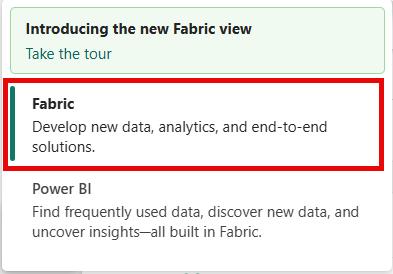
If you see Power BI at the bottom-left of the page, switch to the Fabric workload by selecting Power BI and then by selecting Fabric.
Select Real-Time on the left navigation bar.

The Streaming data page opens by default. Click on the Add data button to get to the Data sources page.
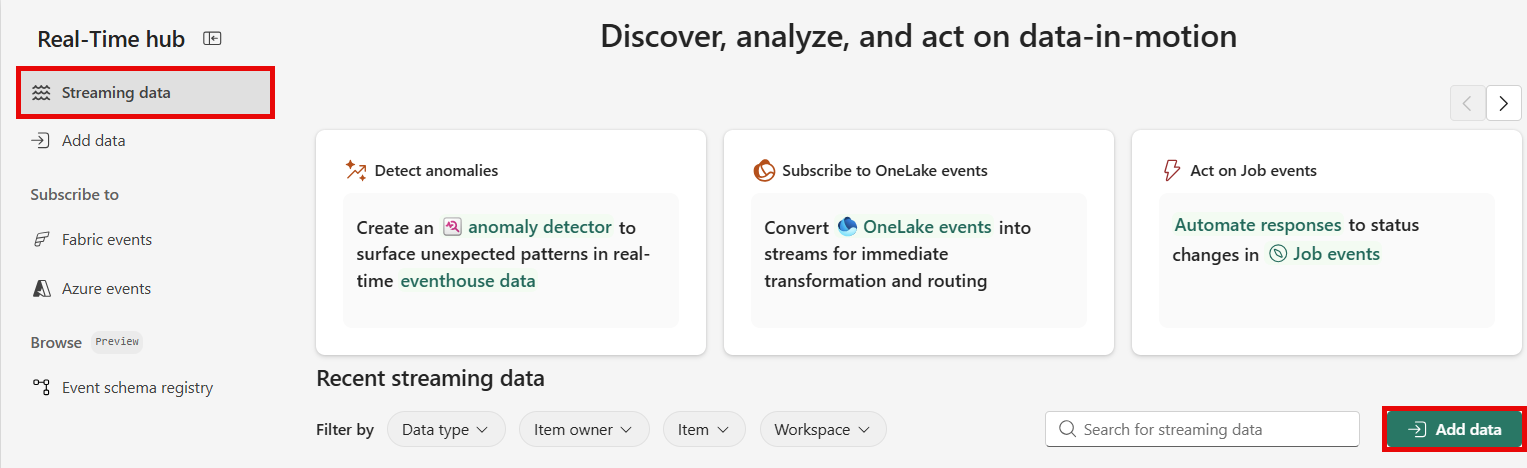
You can also get to the Data sources page directly by selecting the Add data option in the left navigation bar.


On the Data sources page, select Azure events category at the top, and then select Connect on the Azure Blob Storage events tile.

Now, use instructions from the Configure and create an eventstream section.

Azure events page
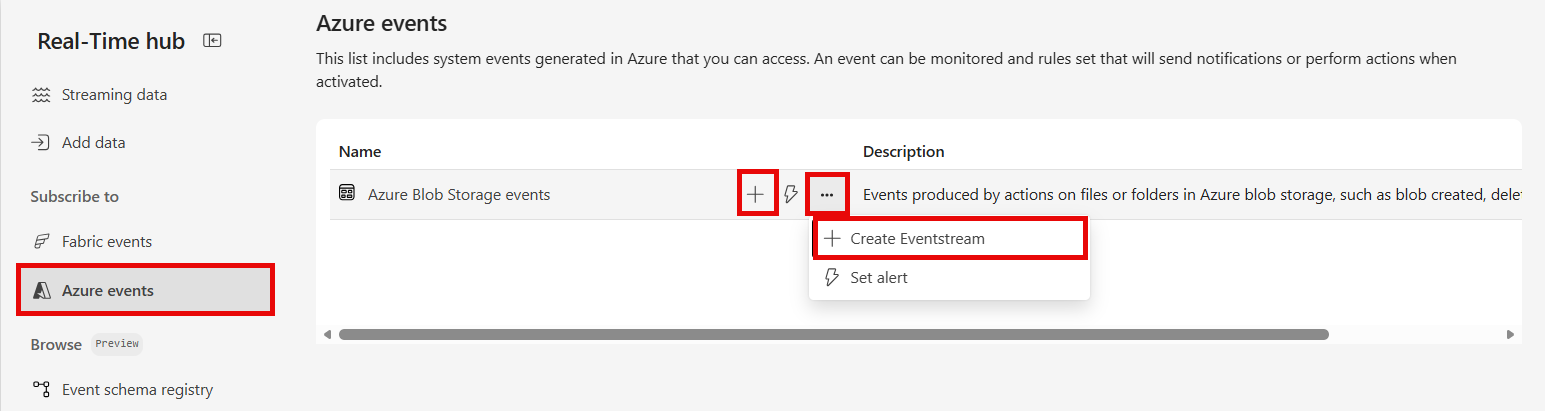
In Real-Time hub, select Azure events on the left navigation menu.
Move the mouse over Azure Blob Storage, and select the + (plus) link, or select ... (ellipsis) and then select Create Eventstream.
Now, use instructions from the Configure and create an eventstream section.
Configure and create an eventstream
On the Connect screen, do these steps:
- Select the Azure subscription that has the storage account.
- Select the Storage account that you want to capture in the eventstream.

Stream or source details
On the Connect page, follow one of these steps based on whether you're using Eventstream or Real-Time hub.
Eventstream:
In the Source details pane to the right, follow these steps:
For Source name, select the Pencil button to change the name.
Notice that Eventstream name and Stream name are read-only.
Real-Time hub:
In the Stream details section to the right, follow these steps:
Select the Fabric workspace where you want to create the eventstream.
For Eventstream name, select the Pencil button, and enter a name for the eventstream.
The Stream name value is automatically generated for you by appending -stream to the name of the eventstream. This stream appears on the real-time hub's All data streams page when the wizard finishes.
Select Next at the bottom of the Configure page.
Review and connect
On the Review + connect screen, review the summary, and select Add (Eventstream) or Connect (Real-Time hub).
View stream from the Real-Time hub page
When the wizard succeeds in creating a stream, on the Review + connect page, if you select Open eventstream, the wizard opens the eventstream that it created for you. To close the wizard, select Finish at the bottom of the page.

Select Real-Time hub on the left navigation menu, and confirm that you see the stream you created. Refresh the page if you don't see it.

For detailed steps, see View details of data streams in Fabric Real-Time hub.


Related content
To learn about consuming data streams, see the following articles: