Note
Access to this page requires authorization. You can try signing in or changing directories.
Access to this page requires authorization. You can try changing directories.
In this tutorial step, learn about consuming ontology (preview) from agents to ask questions in natural language and get answers grounded in the ontology's definitions and bindings. Try it out with a data agent.
Important
This feature is in preview.
Using AI agents with ontology
AI agents can help users move from static analysis to interactive, goal-oriented workflows by understanding natural language, planning steps, calling tools, and taking action on behalf of the user. When agents use an ontology as context, they gain a governed understanding of the business: key entities, relationships, definitions, rules, metrics, and source mappings. This helps agents produce responses that are more grounded, explainable, and consistent across systems instead of relying only on raw data or prompts.
There are three ways to build agents that consume ontology context:
- Foundry IQ: Azure AI Foundry agents help developers build more advanced, customizable agents that can reason over ontology context, call tools, and integrate with enterprise systems. For more information about building an ontology agent with Foundry IQ, see Create an ontology agent with Foundry IQ.
- Copilot Studio: Copilot Studio helps business and low-code makers quickly create conversational agents that use ontology context to answer business questions and automate workflows. For more information about building an ontology agent with Copilot Studio, see Create an ontology agent with Copilot Studio.
- Fabric data agent: Fabric data agents help users create data-grounded agents directly in Fabric that can answer business questions using governed enterprise data, with ontology context adding richer business meaning, relationships, and consistency.
This article uses Fabric data agent.
Create data agent with ontology (preview) source
Follow these steps to create a new data agent that connects to your ontology (preview) item.
Go to your Fabric workspace. Use the + New item button to create a new Data agent item named RetailOntologyAgent.
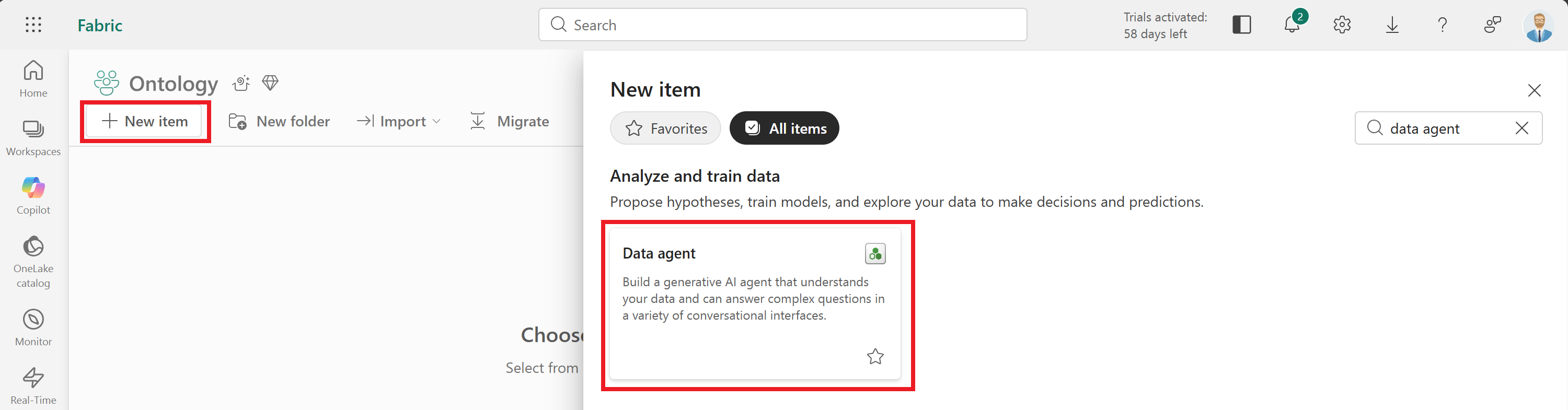
Tip
If you don't see the data agent item type, make sure that it's enabled in your tenant as described in the tutorial prerequisites.
The agent opens when it's ready. Select Add a data source.

Search for the RetailSalesOntology item and select Add. Now your ontology is added as a source for the data agent.

When the agent is ready, the ontology and its entity types are visible in the Explorer.

Provide agent instructions
Note
This step addresses a known issue affecting aggregation in queries.
Next, add a custom instruction to the agent.
Select Agent instructions from the menu ribbon.
At the bottom of the input box, add
Support group by in GQL. This instruction enables better aggregation across ontology data.
The instruction is applied automatically. Optionally, close the Agent instructions tab.

Query agent with natural language
Next, explore your ontology with natural language questions.
Start by entering these example prompts:
- For each store, show any freezers operated by that store that ever had a humidity lower than 46 percent.
- What is the top product by revenue across all stores?
Notice that the responses reference entity types (Store, Products, Freezer) and their relationships, not just raw tables.

Tip
If you see errors that say there's no data while running the example queries, wait a few minutes to give the agent more time to initialize. Then, run the queries again.
Continue exploring the data agent by trying out some prompts of your own.
Next steps
In this step, you explored your ontology by using natural language queries to answer business questions with a data agent.
Next, continue to the tutorial conclusion.
Alternatively, explore other agents that can be used with ontology: