Note
Access to this page requires authorization. You can try signing in or changing directories.
Access to this page requires authorization. You can try changing directories.
Workspace identity for Apache Airflow Jobs enables your Airflow DAGs to authenticate to Fabric services, including lakehouses, pipelines, and warehouses. Workspace identity is a managed identity associated with the Fabric workspace that eliminates the need to configure credentials or connection strings manually.
When workspace identity is enabled, Airflow Jobs authenticate automatically using the workspace identity. No changes to your DAG code are required.
Prerequisites
Before you begin, make sure you have the following prerequisites:
- A Fabric workspace with Contributor or higher role.
- The
ApacheAirflowJob_FabricConnectionSupportfeature switch enabled on your tenant. - An existing Apache Airflow Job artifact.
- Workspace identity enabled on your workspace.
Set up workspace identity permissions for an Airflow job
Before you can use workspace identity with Airflow Jobs, enable it on your workspace and grant the appropriate permissions.
- Open your Fabric workspace and select Settings > Workspace identity.
- Enable the workspace identity if it isn't already enabled.
- Grant the workspace identity access to your workspace by selecting Manage access > Add people or groups.
- Enter the workspace name, and then assign the Member or Contributor role.
The workspace identity now has the permissions needed to access Fabric resources within the workspace.
Create a Fabric connection with workspace identity authentication
Create a Fabric connection to define how your Airflow DAGs authenticate to Fabric services.
Go to Settings > Manage connections and gateways > New.
Select the connection type that matches the Fabric resource you want to access (for example, Notebook).
Select Workspace identity as the authentication kind.
Select the Allow Code-First Artifacts like Notebooks to access this connection (Preview) checkbox.
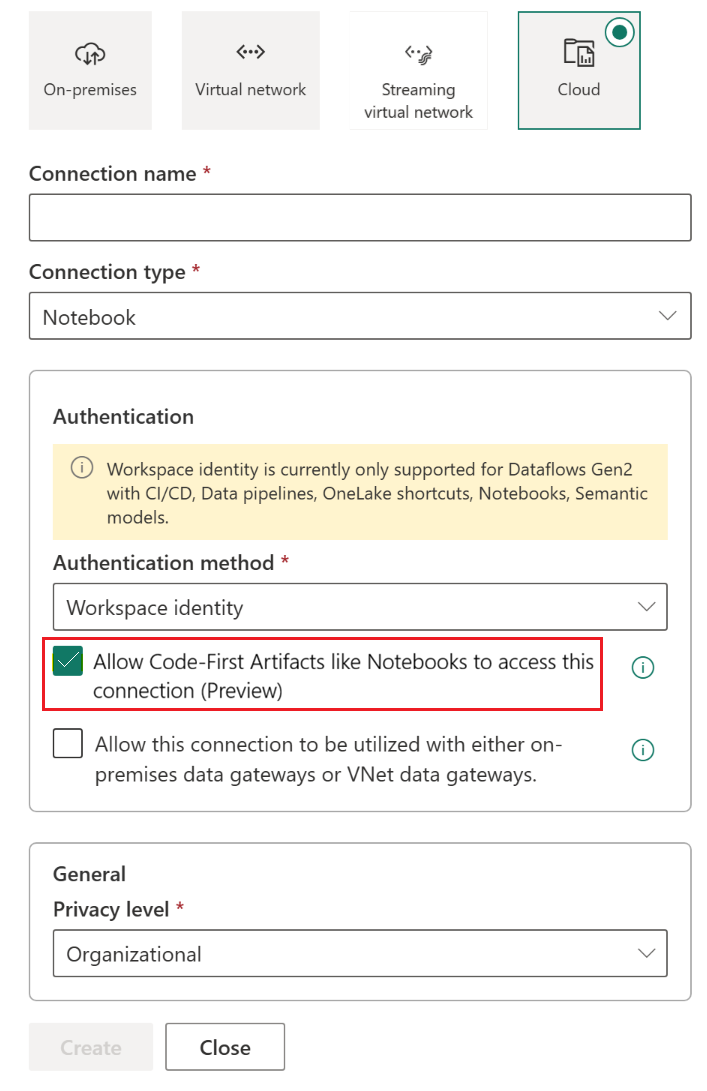
Complete the remaining connection fields and select Create.
Important
You must select the Allow Code-First Artifacts checkbox during connection creation. Apache Airflow is a code-first artifact, and this setting can't be changed after the connection is created.
Enable Fabric connections on an Airflow Job
To enable Fabric connections on your Airflow Job:
Navigate to your Airflow Job artifact in your Fabric workspace.
Open the artifact settings.
Enable the Fabric Connections toggle.
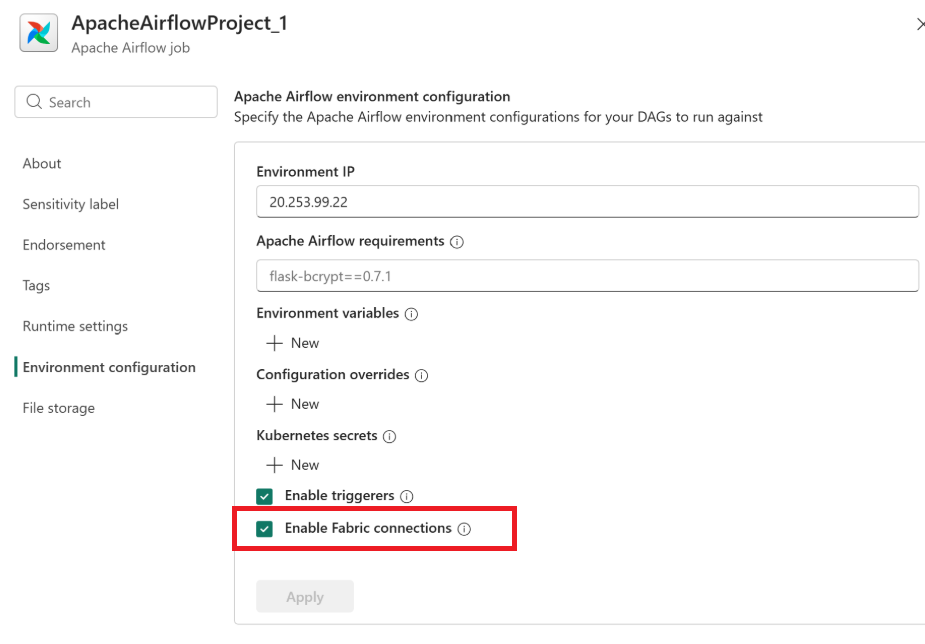
Select Apply.
Once enabled, your Airflow DAGs can access Fabric resources using the workspace identity without any additional credential configuration.
Add connections to your Airflow Job
After you create a Fabric connection and enable the Fabric Connections toggle, add connections to your Airflow Job.
Open your Airflow Job artifact.
Find the connection you created in the All available connections list.
Select + next to the connection to add it to your Airflow Job.
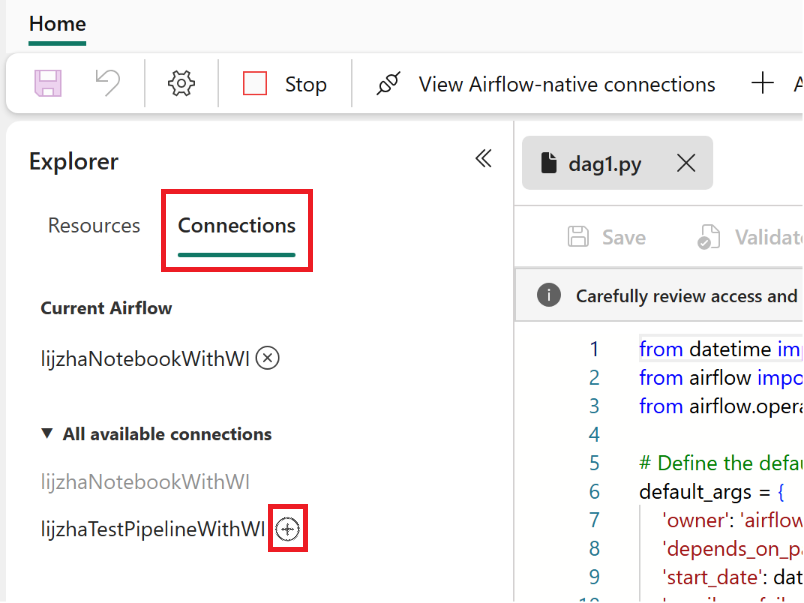
The connection is now available for use in your DAGs.
Use Fabric connections in a DAG
To use a Fabric connection in a DAG:
Open or create a DAG in your Airflow Job.
In the DAG editor, right-click and select Run Fabric Artifact.
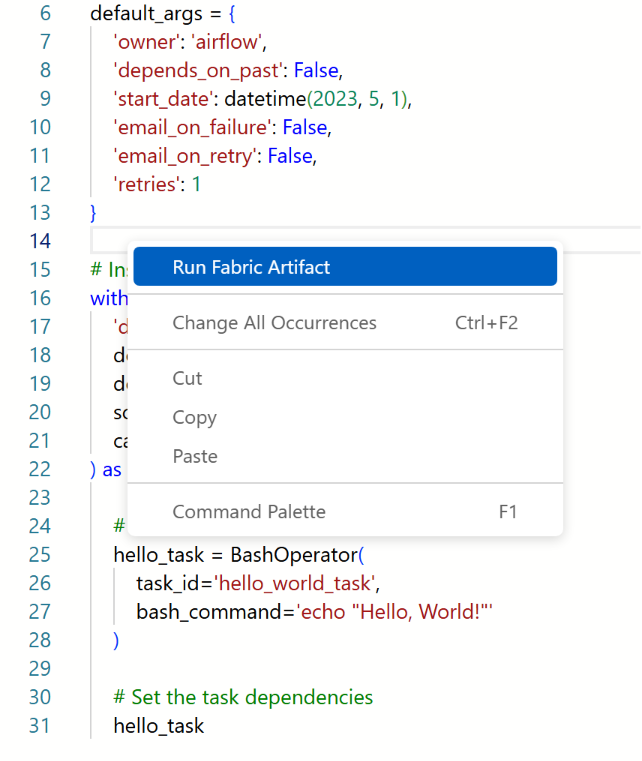
Select the Fabric connection you added to the Airflow Job.
Complete the remaining fields in the form and select Insert to add the code block to your DAG.

Select Run DAG to execute the DAG.

Monitor Apache Airflow DAG runs in Fabric
After you run a DAG that uses a Fabric connection with workspace identity, you can monitor the run status and troubleshoot failures.
- After running a DAG, select Monitor DAG to view the run status.
- Use the Open log or Open task buttons on the tasks view to inspect task-level details.
How workspace identity authentication works in Airflow Jobs
Workspace identity uses the managed identity associated with the Fabric workspace to authenticate Apache Airflow Jobs to Fabric services. When the Fabric Connections toggle is enabled on an Airflow Job, the runtime automatically acquires a Microsoft Entra token using the workspace identity. Access is governed by the workspace role assigned to the identity — the same permissions that apply to users apply equally to workspace identities, service principals, and B2B guest users operating within the workspace.
The following Fabric services are supported:
- Lakehouses
- Pipelines
- Warehouses
Known limitations for workspace identity in Apache Airflow Jobs
Workspace identity for Apache Airflow Jobs has the following limitations during public preview:
- Private link support isn't available in public preview. Full private link support is planned for a future release.
- Government and sovereign cloud support will be available when Fabric supports it in those clouds.
- Reserved environment variables — When the Fabric Connections toggle is enabled, the following environment variables are reserved and can't be overridden:
AZURE_CLIENT_ID,AZURE_TENANT_ID, andAZURE_AUTHORITY_HOST. Attempts to set these variables in the Airflow Job settings fail.
Troubleshoot workspace identity in Apache Airflow Jobs
Use the following guidance to troubleshoot common issues with workspace identity in Apache Airflow Jobs.
Workspace identity doesn't appear in artifact settings
Confirm the ApacheAirflowJob_FabricConnectionSupport feature switch is enabled on your tenant.
Authentication failures when accessing Fabric resources
- Verify the workspace managed identity has the appropriate role on the target resource.
- Confirm the Fabric Connections toggle is enabled on the Airflow Job artifact.
Access denied errors
- Check that the workspace role (Contributor or higher) is correctly assigned.
- Ensure the target Fabric resource is in a workspace the identity has access to.