Note
Access to this page requires authorization. You can try signing in or changing directories.
Access to this page requires authorization. You can try changing directories.
This article describes the Benefits management workspace in Dynamics 365 Human Resources.
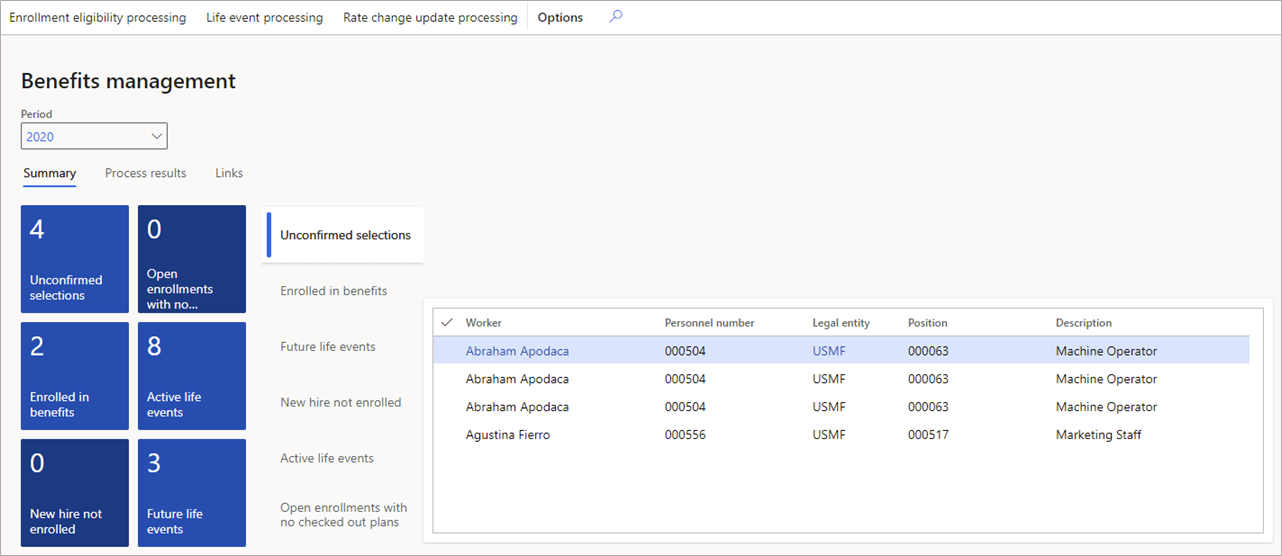
The Benefits management workspace gives you a quick view of benefits items that require your attention. On this page, you can see:
- Totals for items awaiting action
- Workers with unconfirmed selections
- Workers who recently enrolled in benefits
- Workers with future life events
- New hires who aren't enrolled
- Workers with active life events
- Workers with open enrollments who didn't opt for any plans
View action items
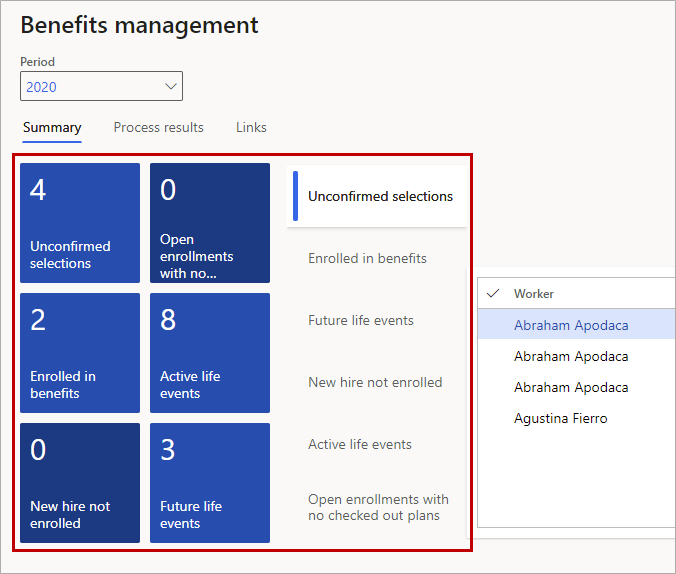
You can view your action items by selecting either a tile or a tab. If you select a tab, you can view and select workers from the workspace page.
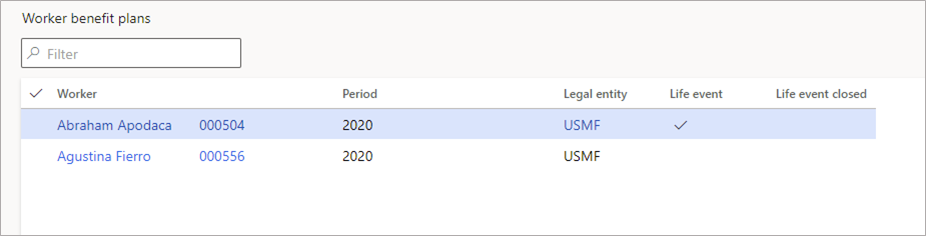
When you select a tile, you go to the page for that area. For example, selecting any of these tiles displays the Worker benefits plans page, filtered for employees you need to take action on:
- Unconfirmed selections
- Open enrollments with no checked out plans
- Enrolled in benefits
- New hire not enrolled
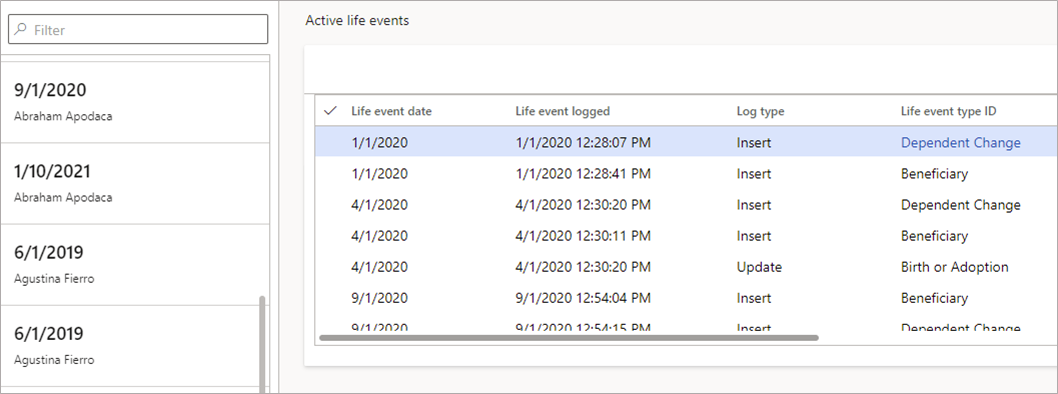
Selecting Active life events or Future life events takes you to a list of active or future life events.
Processing
To process enrollment eligibility, life events, or rate change updates, select the appropriate item on the navigation bar.

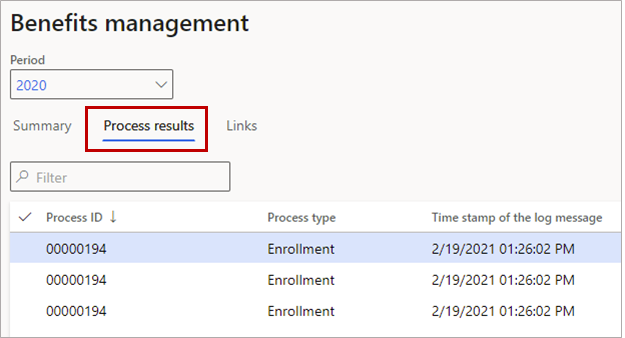
To view process results, select Process results on the page.
For more information about benefits processing, see:
- Process enrollment eligibility
- Process life event changes
- Process life event eligibility
- Process life events
- Process rate changes
Change period
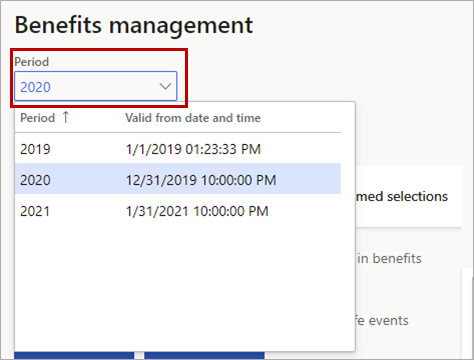
To view a different benefits period, select it from the Period drop-down list.
Open enrollment tab
You can view action items by selecting either a tile or a tab. If you select a tab, you can view and select workers on the workspace page. The Open enrollment tab provides key metrics for the open enrollment process.
Information regarding open enrollment is displayed 30 days before the Enrollment start date. This is defined in the Periods setup in Benefits management > Links > Periods, in the Enrollment start date field. To change this setting, go to Human resources shared parameters > Benefits management > Open enrollment options and update the Number of field.
The following information is available on the Open enrollment tab:
- Employees that haven't started the open enrollment process
- Employees that have elections in process
- Employees that have completed the election process
- Unconfirmed selections
Summary tiles
Not started – The Not started tile shows a count of employees who haven't started the enrollment process. The Not started tile is a filtered list that it shows only those employees that don't have any plans selected, waived, or checked out for the open enrollment plan period. Mandatory plans are ignored and not included because they're selected by default for the employee. You can drill back on this tile to see a list of employees who haven't started the open enrollment process on the Worker benefits plan page.
Note
If you don't want to track the open enrollment progress for a Plan type, you can exclude it by going to Benefits management > Links > Employee self service parameters > Benefit plans tile setup and updating the Track open enrollment progress field. For example, you may have plans created where Plan type = Other. These plans might be optional plans that you don’t want to track enrollment progress for. If you don't select this plan type, plans of these types will be ignored when tracking enrollment progress or completion on the Open enrollment tab. This setting applies to the plan type that is selected for all periods and legal entities.
In progress – The In progress tile gives a count of employees that have elections in progress. The In progress tile is a filtered list that shows only employees that have at least one plan that is waived or selected. Mandatory plans are ignored and not included because they're selected by default for the employee. You can drill back from this tile to see the selected and waived plans on the Worker benefit plans bulk update page.
Enrolled in benefits – The Enrolled in benefits tile gives a count of employees that are fully enrolled in benefits. The Enrolled in benefits tile is a filtered list that shows employees who have either selected or waived all plans. The query excludes plans that aren't tracked for open enrollment on the Employee self service parameters page. You can drill back from this tile to see a list of employees on the Worker benefit plans page.
Unconfirmed selections – The Unconfirmed selections tile shows a count of employees that have plans that are selected or waived and need to be confirmed. You can drill back from this tile to display the Worker benefit plans bulk update page.
Activity
Not started - The Not started tab displays a list of employees that haven't started the enrollment process. The Not started tile is a filtered list that shows employees that don't have any plans selected, waived, or checked out for the open enrollment plan period. Mandatory plans are ignored and not included because they're selected by default for the employee. You can drill down on the worker to display the Worker benefit plans detail page.
Elections in progress - The Elections in progress tab displays a list of employees that have elections in progress. The Elections in progress is a filtered list that shows employees that have at least one plan that is waived or selected. Mandatory plans are ignored and not included because they're selected by default for the employee. You can drill down on the worker to display the Worker benefit plans detail page.
View more options
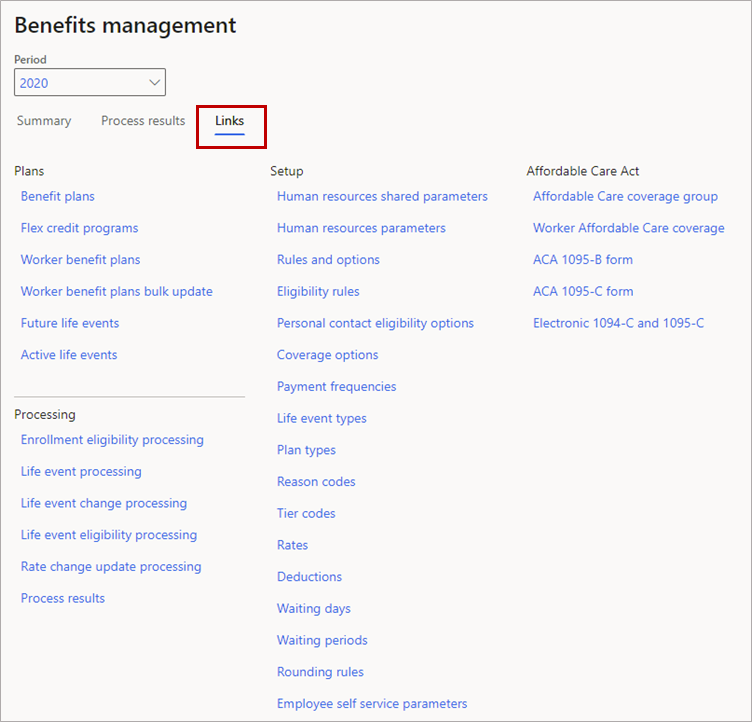
To view more information and additional actions, select Links.