Note
Access to this page requires authorization. You can try signing in or changing directories.
Access to this page requires authorization. You can try changing directories.
When you set up Dynamics 365 Field Service for your organization, you might need to customize the forms that back-office workers like dispatchers and service managers use to view important information and document their work. IT administrators customize Field Service forms to ensure that form layouts match your business processes and let users capture information unique to your business or industry.
Customizing forms correctly is important for maximizing performance. Form customizations affect form load and save times. Proper customization improves usability, making it easier for users to view and update information.
This article explains how to customize the work order form for the web app. However, the steps can be used to customize any Field Service web form. To customize the work order form for the mobile app, go to Edit the booking and work order form.
Step 1. Understand the default work order form
Before you customize the work order form, make sure that you understand the default work order form that is included with Field Service. An understanding of the existing fields and recommended process flow helps you determine what changes to make to the form. For better performance, usability, and upgradability, use the default fields and processes.
Go to Field Service > Work Orders, and either select an existing record or create a new one.
View and familiarize yourself with the default fields, and determine which ones you can use for your business.
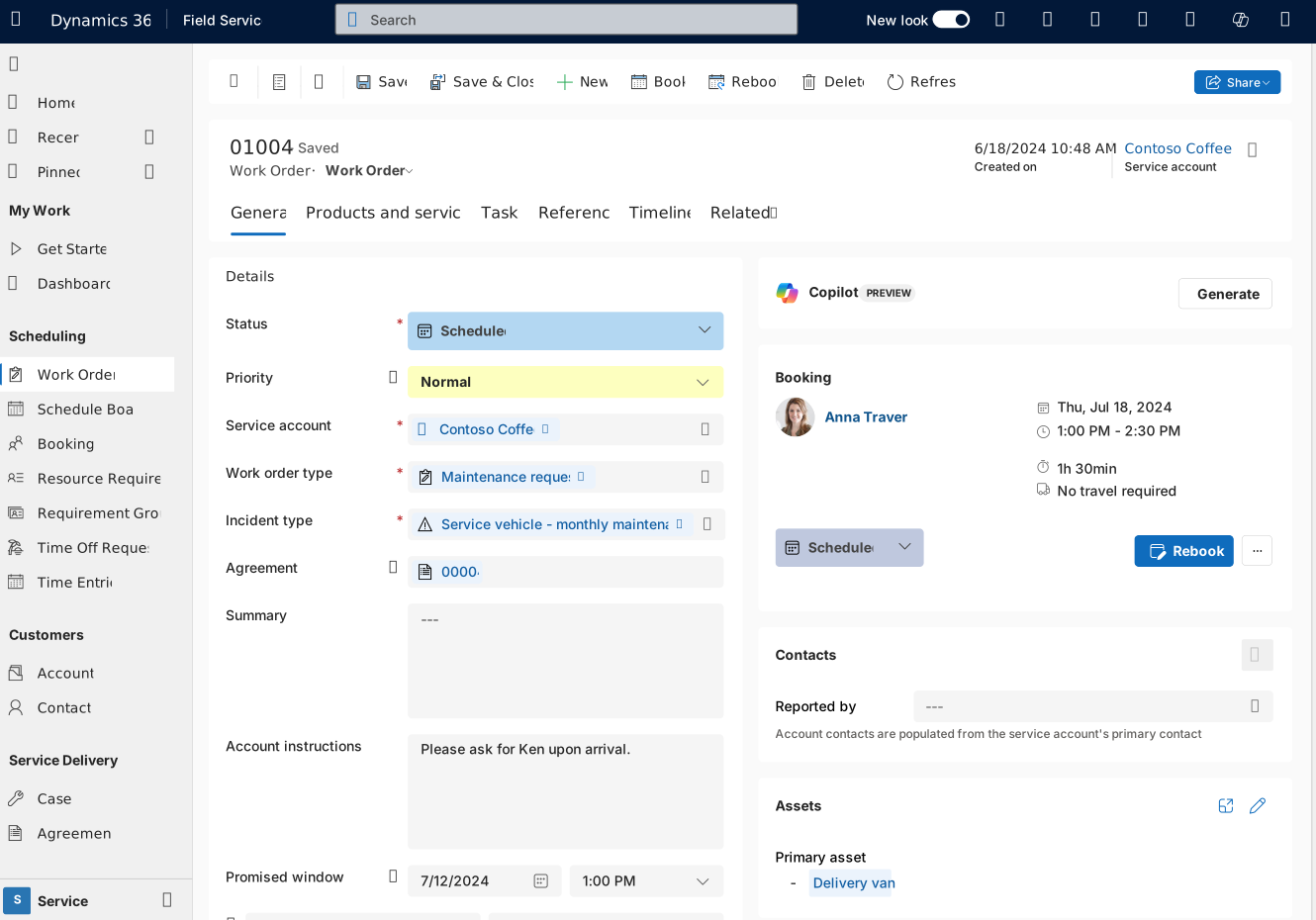
Standard work order process
The default work order form supports this standard work order process.
- Create a work order manually, from a converted case, through an Internet of Things (IoT) alert, from an agreement schedule, or through integration with another system. By default, newly created work orders have a system status of Unscheduled.
- Enter work order details. These details include the account, work order type, location, products, services, service tasks, and any other information that is important.
- Schedule the work order to one or more resources (frontline workers). The system automatically changes the status to Scheduled.
- A frontline worker views the scheduled work order on their mobile app and travels to the customer location to perform the required work. The worker changes the system status to In Progress. The frontline worker updates information such as the time when they arrived on-site, the service tasks that they completed, and the services and products to bill.
- The frontline worker completes the work order. The worker changes the system status to Completed.
- The back-office manager or dispatcher reviews the completed work order and verifies that the work was completed and the necessary data was captured. If everything is finished, they change the system status to Posted.
Learn more about the Work order lifecycle and system statuses.
Critical fields
The following fields are critical to the Field Service work order process and are required. If your organization doesn't plan to use these fields, consider using a different entity (table), or create a new one.
- Work Order Number
- System Status
- Service Account
- Billing Account
- Price List
- Work Order Type
- Work Location
- Address
- Latitude
- Longitude
The following subgrids are also critical to the Field Service work order process and are highly recommended:
- Bookable Resource Booking (Bookings)
- Service Tasks
- Products
- Services
Learn more in Work order architecture and Create a work order.
Step 2. Make a list of needed and unneeded fields
Make a list of default work order fields that are relevant to your business process. Make another list of unneeded fields. Remember to add the critical fields to the list of needed fields, because they're required.
Step 3. Create new fields as needed
If the default work order form is missing fields that you need, create new fields.
To learn about best practices, go to Create and edit Field Service columns.
Important
Use caution when you edit default fields. Don't delete default fields.
Step 4. Start to customize the work order form
Although use of the existing (default) work order form that comes with Field Service is recommended, you might want to create a new custom work order form.
The following tabbed sections explain the pros and cons of each approach. They also include instructions for getting started with each approach.
The existing work order form is a better choice for scenarios where your organization doesn't want to make many changes to the layout or fields. It's also a better choice for organizations that generally want to use the default work order process.
Pros
- It's recommended. Microsoft recommends the existing form.
- It receives updates. The existing form receives updates for performance and new features.
- It provides better supportability. When you use the existing form, it's easier for support teams to diagnose and fix issues.
Cons
- It's less customizable. By agreeing to use the existing form, you agree to make fewer changes to it.
- You must test upgrades. The existing form receives updates as often as twice per year. Test new updates in a sandbox environment, and ensure that they don't disrupt your users. Learn more in Merge form customizations.
Start to customize the existing work order form
Sign in to Power Apps.
Select Tables and All.
Search for and select Work Order.
Under Data experiences, select Forms.
Find the main Work Order form.
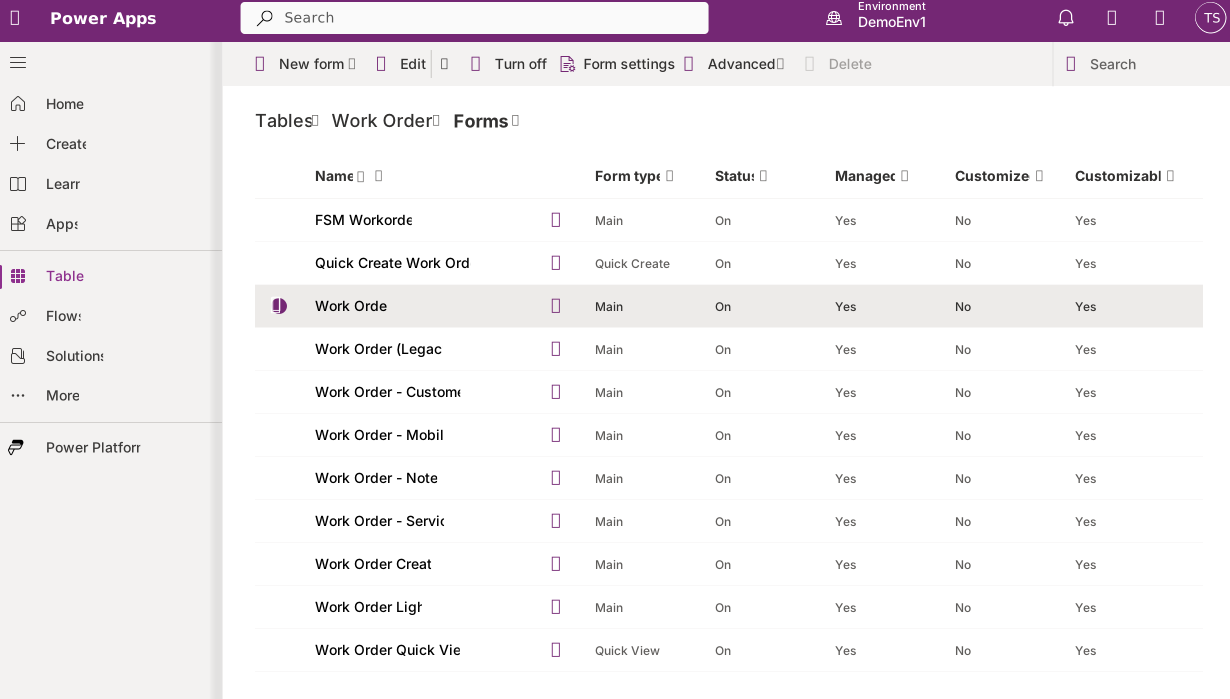
Step 5. Hide form tabs, sections, and fields
Hide unwanted tabs, sections, and fields. Hide items instead of removing them to reduce the likelihood of errors. You can more easily add the items back later if they're needed. Hide items before you rearrange or add fields.
Note
Don't hide critical fields. If your organization doesn't plan to use these fields, consider creating a new entity table.
Hide unwanted tabs
Select the Tree view. Tabs appear horizontally at the top of the form. Hide unnecessary tabs. You can't hide the summary tab.

Hide unwanted sections
Sections are areas on tabs. Hide sections that you don't need. If a section that you need has only one field, move that field to another section, and then hide the unneeded section.
Hide unwanted fields
Hide fields that you don't need, unless they're critical fields.
Remove price-related fields if applicable
You can easily remove all price-related fields, such as Price List and Total Amount, from the work order, work order product, and work order service forms.
- Sign in to the Field Service app.
- Select the Settings area.
- Under General, select Field Service Settings.
- On the Work Order / Booking tab, set the Calculate Price field to No. Learn more in Work Order / Booking settings.
Remove tax-related fields if applicable
You can remove all tax-related fields, such as Taxable, from the work order, work order product, and work order service forms.
- In Field Service, select the Settings area.
- Under General, select Field Service Settings.
- On the Work Order / Booking tab, set the Calculate Tax field to No. Learn more in Work Order / Booking settings.
Step 6. Add your custom fields to the form
If you created custom fields (columns) earlier, add them to the form. For the best outcome, follow these guidelines:
- (Required) Add new custom fields to a new form section.
- (Highly recommended but not required) Add new custom fields to a new form tab.
- Don't add new custom fields to the first form tab unless you must. (By default, the first tab is the summary tab.) Custom fields on the first tab cause form load times to be slower. In particular, avoid adding subgrids and lookup fields to the first form tab, because they can cause load times to be significantly slower.
Add your custom fields to a new form tab (recommended)
In this example, you have a new custom field named Source. It's a choice-type field that you use to select whether the work order originated from a phone call, email, IoT alert, agreement, or other options. You want to add this custom field to the work order form.
Sign in to Power Apps.
In Power Apps, open the work order form editor.
Select Component on the toolbar. In the Components pane on the left, select 1-column tab, 2-column tab, or 3-column tab.

Rename the tab based on your business process.
When you create a new form tab, Power Apps automatically creates new sections on it.
Add your custom fields to the new sections on the new tab. You can add new tabs and new sections as needed.
Add your custom fields to a new section (required)
If you need custom fields on an existing tab, create a new section on the tab, and then add your custom fields to the new section.
Important
Don't add new custom fields to existing sections. You must create new sections. Avoid adding new sections and custom fields to the first form tab (by default, the summary tab). Custom fields on the first tab cause form load times to be slower.
For example, you created a new section on the General tab of the work order form, and you want to add custom fields to it.

To learn more about how to edit forms, go to Create, edit, or configure forms using the form designer.
Step 7. Test your forms with tools
To see how factors such as browsers, network performance, and data queries affect app and form performance, run performance insights.
For help understanding the root cause of slow form load times, use the monitoring tool. Learn more in Use Monitor to troubleshoot model-driven app form behavior.
Form scripts
The work order form includes script libraries. Don't edit or remove any out-of-the-box form libraries.
When the form loads, changes, and saves, many organizations run code scripts to perform validations and run processes. Form scripts can greatly affect aspects of form performance, such as load times. To learn more about best practices, including running solution checker to test scripts for issues, go to Write scripts to implement complex business logic.