Note
Access to this page requires authorization. You can try signing in or changing directories.
Access to this page requires authorization. You can try changing directories.
Note
Community interest groups have now moved from Yammer to Microsoft Viva Engage. To join a Viva Engage community and take part in the latest discussions, fill out the Request access to Finance and Operations Viva Engage Community form and choose the community you want to join.
This article provides information about dimension hierarchies. Use a dimension hierarchy to define the reporting structure, cost policies, and security setup in Cost accounting.
Overview
Cost accounting uses dimension hierarchies in various places. A dimension hierarchy lets you define the following information:
- The reporting structure that fits into the organization's requirements
- Cost policies
- The security setup
Here's an example of a dimension hierarchy.

You can create a dimension hierarchy for the following types of dimensions:
- Cost element dimensions
- Cost object dimensions
- Statistical dimensions
Note
- You can create multiple dimension hierarchies for the same dimension if you need different perspectives.
- You can associate a dimension hierarchy with only one dimension.
- A dimension hierarchy can have unlimited levels in its structure. All the levels appear in the Cost control workspace. When you use Microsoft Excel or Microsoft Power BI for reporting purposes, only the first 15 levels of the dimension hierarchy are exported. This limitation exists because both Excel and Power BI require a fixed schema.
- A dimension hierarchy isn't date-effective. Therefore, any change to a dimension hierarchy is immediately saved to the record, and you can't compare the before date and after date.
Dimension hierarchy type
When you create a new dimension hierarchy, you must select a hierarchy type. Go to Cost accounting > Dimensions > Dimension hierarchies. Select New, and choose a dimension hierarchy type. You can select either Dimension categorization hierarchy or Dimension classification hierarchy.
Dimension categorization hierarchy
Use the Dimension categorization hierarchy type for reporting. It supports only the cost element dimensions. When you select this type, the following rules apply:
- You can associate a dimension member more than once in the hierarchy structure.
- You can put a cost element dimension member in different nodes by assigning a cost behavior to the leaf node.
Dimension classification hierarchy
Use the Dimension classification hierarchy type for defining rules and reporting purposes. It supports all dimensions, such as cost objects, cost elements, and statistical dimensions. When you select this type, you can associate a dimension member only once in the hierarchy structure.
Create and maintain a dimension hierarchy
Create a dimension hierarchy as a tree structure that has node and leaf node relationships.
- A node can have 1:n subnodes.
- A node can't have both subnodes and leaf nodes assigned to it.
- You can assign a leaf node only at the lowest level in the hierarchy.
Example
A small company has the following organization structure, where Finance and Human resources are departments under Admin, and Assembly and Packaging are departments under Production.
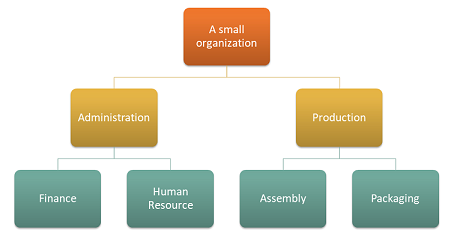
A cost object dimension represents all the cost centers in the organization.
- Cost object dimension
- Cost centers
Set up the cost object dimension that represents all the cost centers as shown in the following table.
| Cost centers | Description |
|---|---|
| CC001 | HR |
| CC002 | Finance |
| CC003 | Tax |
| CC007 | AR/AP |
| CC005 | Assembly |
| CC006 | Packaging |
A cost element dimension represents all the cost elements in the organization.
- Cost element dimension
- Cost elements
Set up the cost element dimension that represents all the cost elements as shown in the following table.
| Cost elements | Description |
|---|---|
| 10001 | Electricity |
| 10010 | Cleaning |
| 10011 | Heating |
| 40001 | COGS |
Set up a dimension hierarchy that meets the organizational reporting requirements as shown in the following table.
Dimension hierarchy details
| Dimension hierarchy name | Dimension | Dimension hierarchy type name | Access list hierarchy |
|---|---|---|---|
| Organization | Cost centers | Dimension classification hierarchy | No |
Set up the dimension hierarchy for reporting as shown in the following table.
Dimension member ranges
| Nodes | From dimension member | To dimension member |
|---|---|---|
| Organization | ||
| Admin | ||
| Finance | CC002 | CC003 |
| CC007 | CC007 | |
| HR | CC001 | CC001 |
| Production | ||
| Packaging | CC005 | CC005 |
| Assembly | CC006 | CC006 |
Set up a dimension hierarchy that meets the policy requirement as shown in the following table.
Dimension hierarchy details
| Dimension hierarchy name | Dimension | Dimension hierarchy type name |
|---|---|---|
| Cost behavior | Cost elements | Dimension classification hierarchy |
Set up the dimension hierarchy for the policy as shown in the following table.
Dimension member ranges
| Nodes | From dimension member | To dimension member |
|---|---|---|
| Cost behavior | ||
| Fixed cost | 10001 | 10011 |
| Variable cost | 40001 | 40010 |
Note
Under Dimension member ranges, a node can contain one-to-many dimension member ranges. You can insert dimension member IDs that don't yet exist as dimension members. This approach makes the hierarchy resilient for the future.
Copy a hierarchy
You can copy a current dimension hierarchy as the starting point for a new dimension hierarchy. This approach is useful if you want to compare the previous dimension hierarchy to the new dimension hierarchy.
Rearrange nodes in a hierarchy
You can move a node up and down within its current level in the structure. Use this method to rearrange the order of nodes for reporting in the Cost control workspace.
To move a node to a new location in the hierarchy, select the target node. Use one of two options to move a node:
- Move below – Move the selected node from its current position in the hierarchy, and insert it under the selected target node.
- Move after – Move the selected node from its current position in the hierarchy, and insert it after the selected target node at its level of the hierarchy.
Note
The order of the nodes isn't maintained when you export data to Excel or Power BI, because those tools use an alphanumeric sort order by default. You should manually rearrange the order.
Define dimension hierarchies for reporting
Dimension hierarchies are important for reporting. They let you define the specific structure that fits into the individual organization. The aggregations that you perform at the node level of the dimension hierarchy let stakeholders at any level of the organization see data at any level.
You can find dimension hierarchies in the following reporting tools. This approach helps guarantee consistency in the reporting structure.
Cost control workspace (Client):
- Controlled by configuration.
Cost control workspace (Mobile application):
- Controlled by configuration.
Excel
Provides the option to select specific dimension hierarchies per export definition:
- One cost element dimension hierarchy (mandatory)
- One cost object dimension hierarchy (optional)
- One statistical dimension hierarchy (optional)
Power BI:
- All dimension hierarchies are available.
If you create reports by using Excel or Power BI, you can export only the first 15 levels of the dimension hierarchies. This limitation exists because Excel and Power BI require a fixed schema. If a hierarchy has more than 15 levels, the extra levels aren't exported. The normalized table contains a record for each dimension member in the hierarchy. Therefore, automated aggregation occurs. This behavior helps guarantee that the balances at any of the 15 available levels in the hierarchy are still correct.
The following example shows what a dimension hierarchy might look like in the reporting structure.
| Cost object dimension hierarchy – Level 1 | Cost object dimension hierarchy – Level 2 | Cost object dimension hierarchy – Level 3 | Cost object dimension hierarchy – Level 4 | Cost object dimension hierarchy – Level 15 |
|---|---|---|---|---|
| Organization | Admin | Finance | CC002 | |
| Organization | Admin | Finance | CC003 | |
| Organization | Admin | Finance | CC007 | |
| Organization | Admin | HR | CC001 | |
| Organization | Production | Packaging | CC005 | |
| Organization | Production | Assembly | CC006 |
Update the dimension hierarchies that you use for reporting
Over time, you need to update the dimension hierarchies that you use in the previously mentioned reporting tools. You can update dimension hierarchies by refreshing the client.
- Cost control workspace (Client)
- Cost control workspace (Mobile application)
Updates to dimension hierarchies are picked up every 24 hours by a precached job. After the exported data is updated, the updated dimension hierarchies are available in the following tools:
- Excel
- Power BI
Note
To manually trigger an update of the dimension hierarchy cache, create a new export to Excel for the dimension hierarchy or hierarchies that you need to update.
Define dimension hierarchies for cost policies
Cost accounting consists of multiple policies where you define detailed rules. You must define one or more dimension hierarchies for the following policies:
- Cost behavior
- Cost distribution
- Cost allocation
- Cost rollup
Dimension hierarchies make it easy to create rules. To avoid having to create rules for every dimension member, you can take advantage of the aggregations of dimension members that are provided by dimension hierarchy levels. If you have overlapping rules, you must define specific rules that the system will consider when it does the overhead calculation.
Example: Define a cost behavior policy
Create a new cost behavior policy and assign the appropriate dimension hierarchies to the policy, as shown in the following table.
Cost behavior policy
| Policy name | Cost element dimension hierarchy | Cost object dimension hierarchy | Accounting currency |
|---|---|---|---|
| Cost behavior | Cost behavior | Organization | USD |
Rules
| Cost element dimension hierarchy node | Cost object dimension hierarchy node | Fixed percentage | Fixed amount | Valid from | Valid to |
|---|---|---|---|---|---|
| Fixed cost | Organization | 100.00 | 0.00 | 1/1/2025 | Never |
| 10001 | Organization | 0.00 | 150.00 | 1/1/2025 | Never |
| 10001 (*) | Finance | 50.00 | 1/1/2025 | Never | |
| Cost behavior or Variable cost (**) | Organization | 0.00 | 0.00 | 1/1/2025 | Never |
* The variable cost node isn't required. If a cost isn't classified as a fixed cost, it must be a variable cost.
** A detailed rule is created for the combination of cost element member 10001 and all cost object members that are aggregated under the Finance hierarchy level (CC002, CC003, CC007).
The preceding rules show the flexibility that dimension hierarchies provide. By defining high-level rules, you can help minimize maintenance. You can then define detailed rules to fit into a specific business objective.
If the dimension hierarchies that are used in rules are updated, the system automatically brings the updates forward.
If a level of granularity in the rules is no longer required, you can expire the rule.
For example, a specific cost behavior rule for the Finance cost object dimension hierarchy node is no longer required. In this case, select Expire rule to expire the rule.
| Cost element dimension hierarchy node | Cost object dimension hierarchy node | Fixed percentage | Fixed amount | Valid from | Valid to |
|---|---|---|---|---|---|
| Fixed cost | Organization | 100.00 | 0.00 | 1/1/2025 | Never |
| 10001 | Organization | 0.00 | 150.00 | 1/1/2025 | Never |
| 10001 | Finance | 50.00 | 1/1/2025 | 20/1/2025 | |
| Cost behavior or Variable cost | Organization | 0.00 | 0.00 | 1/1/2025 | Never |
Any overhead calculation that runs after January 20, 2025, no longer considers this rule.
Note
The Valid from and Valid to fields are date-effective and time-effective. You can expire the rule and run a new overhead calculation on the same day.
Define dimension hierarchies for security setup
Cost accounting data should be made available to all managers who are responsible for a reporting unit. In Cost accounting terminology, a reporting unit is represented as a cost object or a set of cost objects.
Potentially, all managers are able to access highly sensitive business data, such revenues and margins. Therefore, it's important that you set up security, so that managers see only the data that's relevant to them. To help control data security, you define dimension hierarchies.
- The use of dimension hierarchies applies only when the dimension value that is selected in the dimension hierarchy reference is a cost object dimension.
- You can enable only one dimension hierarchy per cost object dimension in the access list hierarchy.
Dimension hierarchy details
| Dimension hierarchy name | Dimension | Dimension hierarchy type name | Access list hierarchy |
|---|---|---|---|
| Organization | Cost centers | Dimension classification hierarchy | Yes |
A new Users FastTab is available in the hierarchy designer. Here, you can insert one or more user IDs at each node in the hierarchy.
Users and dimension member ranges
| Nodes | User ID | From dimension member | To dimension member |
|---|---|---|---|
| Organization | Benjamin, Claire | ||
| Admin | April | ||
| Finance | Alicia | CC002 | CC003 |
| CC007 | CC007 | ||
| HR | Arnie | CC001 | CC001 |
| Production | David | ||
| Packaging | Ellen | CC005 | CC005 |
| Assembly | Chris | CC006 | CC006 |
Note
Cost accountants should be assigned to the top level of the hierarchy, so that they can see all entries in Cost accounting.
To enable the access list hierarchy and its security settings, go to Cost accounting > Setup > Parameters > General. Select the Enable view access for cost object dimension members parameter.
The settings for the access list hierarchy control the data that is shown in the following areas:
Cost control workspace (Client):
- Data in pages that are used to drill through scenarios
Cost control workspace (Mobile application):
- Balances in cards
Power BI:
- Data that is shown in Power BI visualizations
- Data Power BI visualizations that are embedded in the Dynamics 365 Finance client
Note
- Before the access list hierarchy can affect data in Power BI, access list hierarchy and row-level security in Power BI must be paired. For more information, see Set up security for Cost accounting content pack.
- The access list hierarchy doesn't help secure the export of data to Excel. Therefore, that reporting tool should be used only by cost accountants and managers who must have full access to view the data.