Note
Access to this page requires authorization. You can try signing in or changing directories.
Access to this page requires authorization. You can try changing directories.
Microsoft 365 Copilot for apps is your next-generation AI assistant. It helps you explore and understand data in your apps through natural language conversations. Use Microsoft 365 Copilot to boost productivity with AI-powered insights and navigation.
Prerequisites
An administrator must enable Microsoft 365 Copilot in your application before it becomes visible in your app. For more information, see Add Microsoft 365 Copilot for app users.
Note
- To use the Microsoft 365 Copilot feature in a Power Apps app, users must have both a Power Apps premium license and a Microsoft 365 Copilot license. For more information about licensing, see Power Platform licensing guide.
- To use the Microsoft 365 Copilot feature in a Dynamics 365 app, users must have a Dynamics 365 Enterprise or Premium license. However, to get the full capabilities of Work IQ, beyond Dataverse grounding, a Microsoft 365 Copilot license is required. For more information about licensing, see Dynamics 365 licensing guide.
Copilot pane
After Microsoft 365 Copilot is enabled, you can access it through the Copilot button near the upper-right corner of the page.
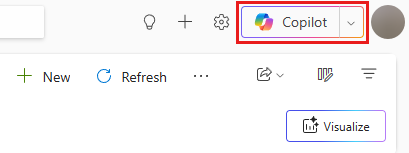
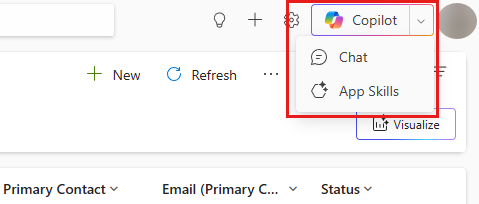
If both Microsoft 365 Copilot and Copilot chat in apps are enabled, you can switch between them:
- Chat option opens Microsoft 365 Copilot.
- App Skills option opens Copilot chat in apps. These terms align with Microsoft 365 apps for consistency.
You can expand or collapse the Microsoft 365 Copilot pane as needed.
Ask questions with Microsoft 365 Copilot
Microsoft 365 Copilot in apps answers questions about the Dataverse table data in the app.

Share your feedback
Help us improve Copilot responses by using the feedback controls on each response. Provide feedback for every response:
- If a response is high quality and helpful, select the thumbs up button.
- If a response is incorrect, incomplete, or not helpful, select the thumbs down button.
When you provide feedback, share as much information as possible. For example, include what you expected to see, what was missing or incorrect, and any relevant context. The more detail you share, the better we can understand your feedback and continuously improve responses.
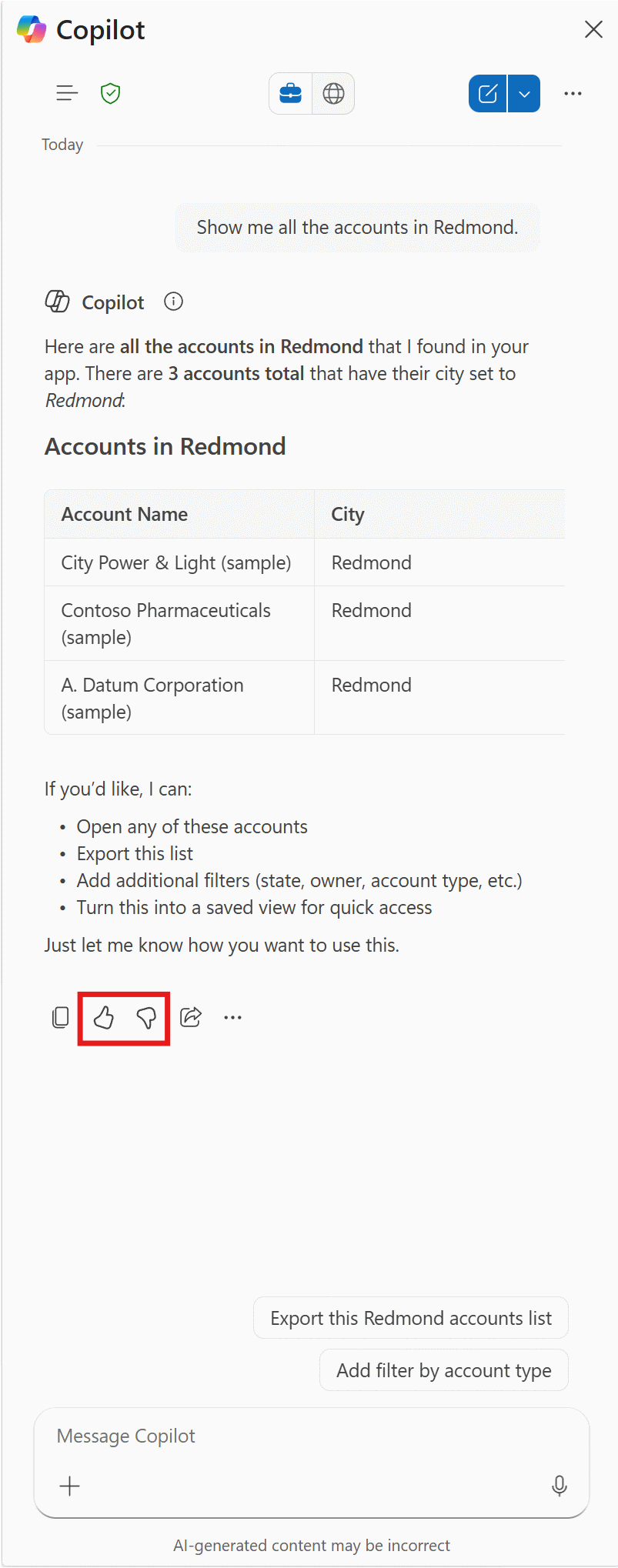
Microsoft 365 Copilot suggested questions
To help you get started, Microsoft 365 Copilot suggests questions. Many include placeholders you can replace with appropriate text.

Use agents in Microsoft 365 Copilot
Important
If you select an agent in Microsoft 365 Copilot in apps, it stops answering questions about Dataverse table data unless you configure it to do so. However, the agent can still use chat history. To get the side chat to answer questions about the Dataverse table data in the app again, you need to remove the explicit agent selection.
You can use any agent available in Microsoft 365 Copilot directly from the side pane. When an agent is available within Microsoft 365 Copilot, you can interact by either choosing it from the navigation panel or @ mentioning it.

One of the benefits of @ mentioning an agent is that you can add or remove it from an ongoing conversation, which lets you have several agents collaborating in one conversation. When you select an agent from the navigation panel, you have a direct conversation only with the agent you selected.

Limitations
- Microsoft 365 Copilot for model-driven apps allows users to view data by using read-only operations. This capability means that users can only view data that matches their queries and can't make any changes. To make changes, customization with an agent is required.
- Microsoft 365 Copilot for model-driven apps isn't available in the Power Apps mobile app.
- As this feature is being gradually deployed, certain settings in the Power Platform Admin Center might not be accessible yet, depending on the geographic location of your tenant.