Note
Access to this page requires authorization. You can try signing in or changing directories.
Access to this page requires authorization. You can try changing directories.
CHANGED IN: Business Central 2024 release wave 2
Note
We're working on improving the onboarding experience for AL developers. If you've input for this article, we'd love to hear from you. Please use the Feedback section at the bottom of this article to help us make improvements that you’d like to see.
We also welcome contributions to our docs. New to contributing to docs? Don't worry, read more about contributing here Contribute to the help.
The AL Language extension for Microsoft Dynamics 365 Business Central can help users fix issues in the code. Code Actions is a Visual Studio Code feature that provides the user with possible corrective actions right next to an error or warning. If actions are available, a light bulb appears next to the error or warning. When the user chooses the light bulb (or presses Ctrl+.), a list of available code actions is presented. A code action can be applied to a single instance or to a broader scope depending on the type of action.
Scope levels
Many code actions let you choose the scope of the fix. The following table explains each scope level.
| Scope | Description |
|---|---|
| Instance | Applies the fix to the single occurrence at the current cursor position. |
| Document | Applies the fix to all occurrences in the current file. A file can contain multiple AL objects. |
| Project | Applies the fix to all occurrences across all files in the current AL project. |
| Workspace | Applies the fix to all occurrences across all projects in the current Visual Studio Code workspace. Relevant in multi-root workspaces. |
When you select a code action from the light bulb menu, the available scope options are shown as sub-items. Choose the scope that matches how broadly you want the fix applied.
Available code actions
In AL Language extension for Microsoft Dynamics 365 Business Central, the following code actions are available in the current version.
Multiple IF to CASE
Converts a chain of if ... else if statements into a case statement when the same variable is tested in each condition. This action is triggered when the compiler detects a suitable if/else if pattern.
Scope: Instance only.
Spell check
Suggests corrections for misspelled identifiers in your AL code. Triggered on certain syntax errors where the compiler can identify a close match to a known identifier.
Scope: Instance only.
Interface implementer
Generates stub procedure implementations for all members of an interface that aren't yet implemented in the current codeunit. Triggered when a codeunit declares that it implements an interface but is missing one or more procedure definitions.
Scope: Instance only.
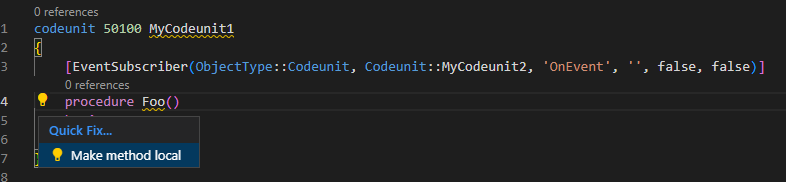
Make method local
Changes a method's accessibility from public (or internal) to local when the method is only used within the same object. This action is the fix for CodeCop Warning AA0207.
Scope: Instance only.
Use parenthesis for method call
Adds missing parentheses to method calls that omit them. Ensures consistent syntax for procedure invocations.
Scope: Instance, document, project, or workspace.
Fix explicit with statements
Removes explicit with statements and qualifies all member references with the record variable name. This action helps you move away from the deprecated with syntax.
Scope: Instance, document, project, or workspace.
Fix implicit with statements
Resolves implicit with usage (where fields are accessed without qualification) by adding explicit record variable prefixes. This action helps you move away from the deprecated with syntax.
Scope: Instance, document, project, or workspace.
Fix old report layout
Replaces the legacy report layout properties (RDLCLayout, WordLayout) with a rendering layout section. Triggered on reports that use the old layout declaration syntax.
Scope: Instance only.
Fix for AW0013
Applies the fix for analyzer warning AW0013, which flags groups in a page that contain only one action.
Scope: Instance only.
Convert promoted actions to actionref syntax
Converts pages or page extensions from legacy promoted action syntax to the actionref syntax introduced with Business Central 2022 release wave 2. Learn more in Code actions for promoted actions.
Scope: Instance, document, project, or workspace.
Set ApplicationArea default value
Sets the ApplicationArea property at the page or report level and removes redundant per-field ApplicationArea declarations. This consolidates the property to the object level.
Scope: Instance (single object), document, project, or workspace.
Convert event subscriber parameters
Converts existing event parameters in event subscribers from the legacy string literal format to the new identifier format. This makes it easy to opt in to the new syntax in a controlled way.
Scope: Instance, document, project, or workspace.
Insert using statement
Adds a using directive for a namespace that's referenced in the code but not yet declared. Triggered when the compiler detects an unresolved type that exists in a known namespace.
Scope: Instance, document, project, or workspace.
Convert page control tooltips
Moves tooltips from page controls down to the underlying table fields. Defining tooltips at the table field level makes them reusable across all pages that display the same field, so you don't have to maintain duplicate tooltip text on each page.
The action uses the following logic:
- If the table field doesn't have a tooltip yet, the tooltip is moved from the page control to the table field, and the page control tooltip is removed.
- If the table field already has the same tooltip as the page control, the redundant page control tooltip is removed.
- If the table field already has a different tooltip than the page control, the conflict is flagged for manual resolution.
Learn more in Tooltip property.
Scope: Instance, document, project, or workspace.
Fix self-reference to use this keyword
Updates code to use the this keyword when a codeunit references its own methods or properties, improving code readability. Learn more in Use the this keyword for codeunit self-reference.
Scope: Instance, document, project, or workspace.
Add namespace
Adds a namespace declaration to a file based on your project's namespace template, the namespace used in sibling files, or the publisher/project name. Learn more in Adopting namespaces in AL.
Scope: Instance, document, project, or workspace.
Sort using statements
Reorders using directives alphabetically within a file, project, or workspace for consistent ordering.
Scope: Document, project, or workspace.
Examples
The spell check code action is triggered on certain syntax errors:

The make method local action is triggered to fix the CodeCop Warning AA0207:
Code actions for promoted actions
Use the code action to convert legacy syntax for promoted actions to the actionref syntax, which is introduced with Business Central 2022 release wave 2. In-client customizations, user personalization, and profile configurations are automatically converted into the new syntax, so this is primarily applicable to DEV extensions. The code action can apply to a single instance, the document, the project, or the workspace.

Note
For Designer extensions, use F6 to open Designer, which opens the page where the legacy syntax is used. Choose the Lock symbol and use Unlock page to automatically convert the legacy syntax for the running code. Selecting Alt+F6 will bring you back into Visual Studio Code, and show the converted actionref code.
To enable AL code actions
- Open the Command Palette by selecting Ctrl+Shift+P and then open the
settings.jsonfile. - Enter the setting
al.enableCodeActionsand set it totruelike this"al.enableCodeActions": true - Save the settings file. You have now enabled code actions on your project.
Alternatively:
- Open the settings page, Ctrl+, and choose either User Settings or Workspace Settings depending on which scope you want the code actions to apply to.
- Navigate to Extensions > AL Language extension configuration.
- Choose the Enable Code Actions checkbox. You've now enabled code actions on your project.
Related information
AL development environment
AL outline view
AL Formatter
Directives in AL