Note
Access to this page requires authorization. You can try signing in or changing directories.
Access to this page requires authorization. You can try changing directories.
You must follow these steps to be able to use the Azure Storage extension:
- Identify Azure Storage accounts
- Choose type of authorization
- Load the extension's library
- Allow list the extension
- Create the extension
- Initialize encryption key to encrypt sensitive credentials
- Use the extension to import and export data
Identify the Azure Storage accounts
Identify the Azure Storage accounts with which you want users of the extension to interact, to import data from or export data to.
Choose type of authorization
Decide which type of authorization you want to use for the requests made against the blob service of each of those Azure Storage accounts. azure_storage extension supports authorization with Shared Key, and authorization with Microsoft Entra ID.
Of these two types of authorization, Microsoft Entra ID provides superior security and ease of use over Shared Key, and is the one Microsoft recommends.
To meet the prerequisites needed in each case, follow the instructions in the corresponding sections:
To use authorization with Microsoft Entra ID
- Enable Firewall rules in Azure Database for PostgreSQL on your Azure Database for PostgreSQL flexible server instance.
- Restart PostgreSQL engine, after enabling a system assigned managed identity on it.
- Assign role-based access control (RBAC) permissions for access to blob data, on the Azure Storage account, to the System Assigned Managed Identity of your instance of Azure Database for PostgreSQL flexible server.
Enable System Assigned Managed Identity

To use authorization with Shared Key
- Confirm that storage account allows access to its key
- Fetch one of the two access keys of the storage account
Confirm that storage account allows access to its key
Your Azure Storage account must have Allow storage account key access enabled (that is, it can't have its AllowSharedKeyAccess property set to false).
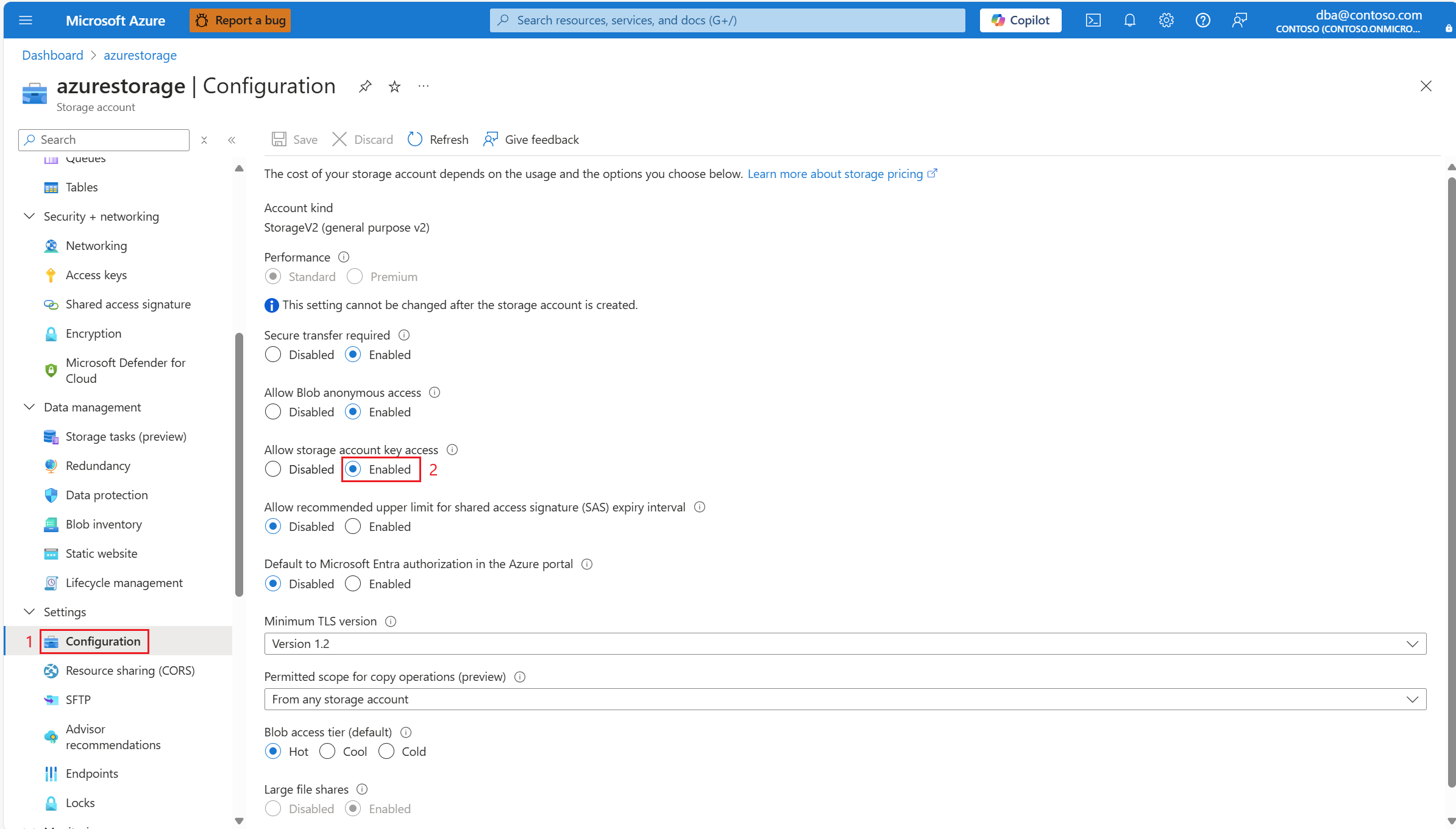
Fetch one of the two access keys of the storage account
To pass it to the azure_storage.account_add function, fetch either of the two access keys of the Azure Storage account.

Load the extension's library
Configure your server so that it loads the azure_storage binary module when it's started.
 Because the
 shared_preload_libraries is static, the server must be restarted for a change to take effect:

Allow list the extension
You must allow list the extension so that users can run CREATE EXTENSION, DROP EXTENSION, ALTER EXTENSION, COMMENT ON EXTENSION.
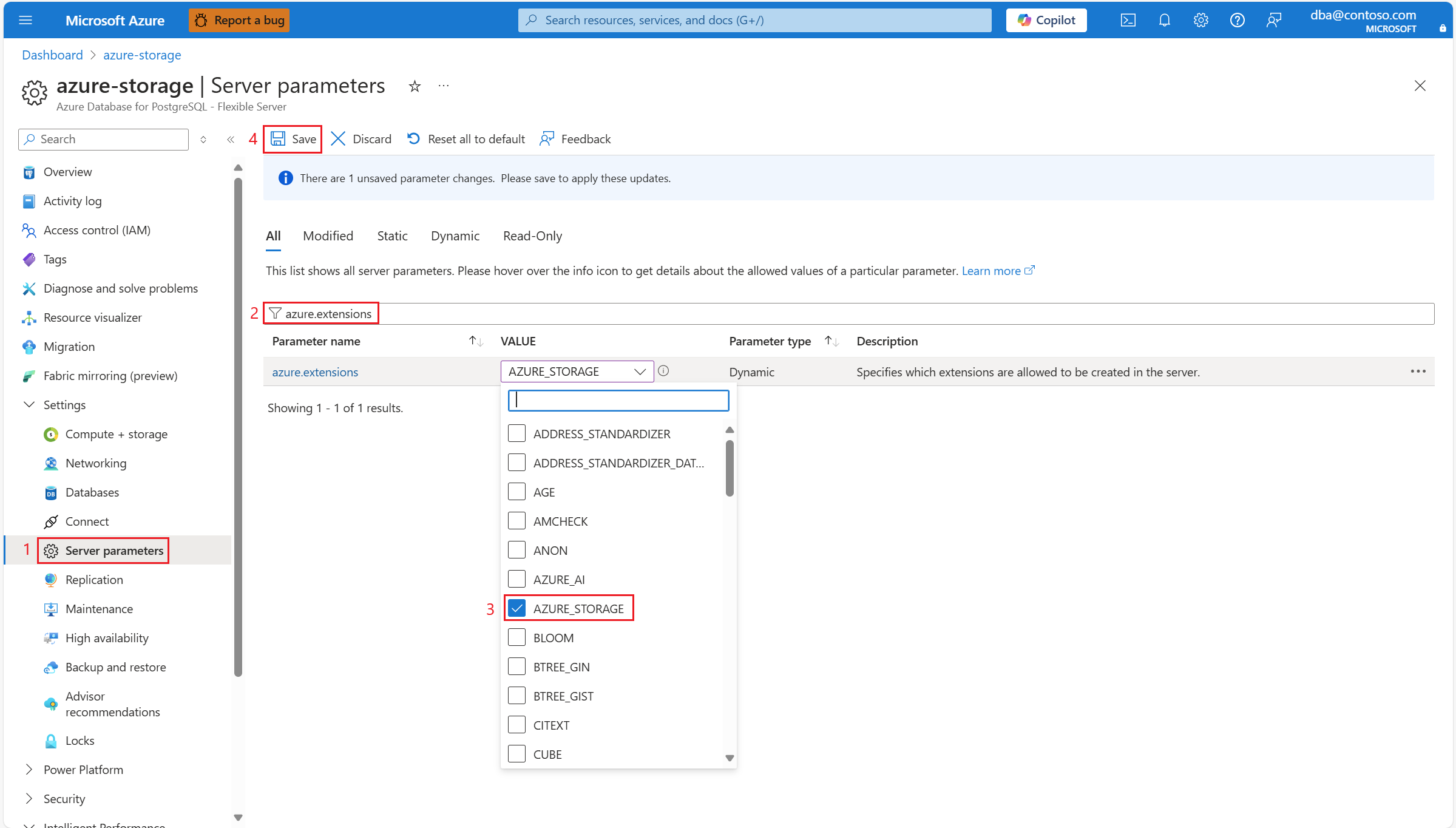
Create the extension
Use the client of your preference, like PostgreSQL for Visual Studio Code (Preview), psql, or PgAdmin, to connect to the database in which you want to use the Azure Storage extension.
To create all SQL objects (tables, types, functions, views, etc.) with which you can use the azure_storage extension to interact with instances of Azure Storage accounts, execute the following statement:
CREATE EXTENSION azure_storage;
Initialize encryption key to encrypt sensitive credentials
Use the client of your preference, like PostgreSQL for Visual Studio Code (Preview), psql, or PgAdmin, to connect to the database in which you want to use the Azure Storage extension.
To initialize the encryption key with which all sensitive credentials used to authenticate with the different Azure storage accounts, execute the following statement:
Note
Make sure you change <strong passphrase> with your own strong secret.
ALTER DATABASE <database_with_created_extension> SET azure_storage.credential_encryption_key = '<strong_passphrase>';
If you create the extension in multiple databases, you must initialize the value of azure_storage.credential_encryption_key at the database level, so all sensitive credentials kept in that database are encrypted using the same key.
To set the value of azure_storage.credential_encryption_key, you must be member of the azure_storage_admin role. Then connect to the server, in the context of the database in which you created the extension. And, in that context, execute ALTER DATABASE <database_with_created_extension> SET azure_storage.credential_encryption_key = '<strong passphrase>'; to initialize the encryption key that's used to encrypt all Azure storage account credentials kept by the extension in the catalog of that database. After running this command, you must disconnect and reconnect to the database again, so that the override value takes effect, and you should also invoke the azure_storage.account_encrypt_existing_credentials() function so that the credentials of existing accounts which were never encrypted before with any other key, are encrypted with this key. To do so, execute SELECT azure_storage.account_encrypt_existing_credentials();.
Although possible, we recommend against trying to use other statements like ALTER ROLE or ALTER ROLE IN DATABASE to set the value of azure_storage.credential_encryption_key.
If you change the value of azure_storage.credential_encryption_key, you'll have to manually add again, using azure_storage.account_add, all storage accounts for which you provided a sensitive credential (an access key or a SAS token) which was encrypted with the previous value. Currently the extension doesn't support automatic rollover of encryption key.
Use the extension to import and export data
Now you're ready to add the storage accounts with which you want to interact (using the azure_storage.account_add function). Then you can import data stored in files in Azure Storage accounts, by using the azure_storage.blob_get function or the COPY FROM statement, or you can export data from PostgreSQL into files in an Azure Storage account, by using the azure_storage.blob_put function or the COPY TO statement.
Check out the list of quickstart examples:
- Create an Azure Storage account and populate it with data
- Create a table in which data is loaded
- Add access key of storage account
- Grant access to a user or role on the Azure Blob storage reference
- List all blobs in a container
- List blobs with a specific name prefix
- Import data using a COPY FROM statement
- Export data using a COPY TO statement
- Read content from a blob
- Read, filter, and modify content read from a blob
- Read content from file with custom options (headers, column delimiters, escape characters)
- Use the decoder option
- Compute aggregations over the content of a blob
- Write content to a blob
- List all the references to Azure storage accounts
- Revoke access from a user or role on the Azure Blob storage reference
- Remove reference to storage account
In case you need to review all functions offered by the extension and all the details about each of them, review the full reference:
- azure_storage.account_add
- azure_storage.account_options_managed_identity
- azure_storage.account_options_credentials
- azure_storage.account_options
- azure_storage.account_remove
- azure_storage.account_user_add
- azure_storage.account_user_remove
- azure_storage.account_list
- azure_storage.blob_list
- azure_storage.blob_get
- azure_storage.blob_put
- azure_storage.options_csv_get
- azure_storage.options_copy
- azure_storage.options_tsv
- azure_storage.options_binary
And, if you need to do some troubleshooting, review the list of errors that the extension can produce, and the context in which they can be raised.
Important
For authentication types for which you must provide an Azure Storage account access key, notice that your Azure Storage access keys are similar to a root password for your storage account. Always be careful to protect them. Use Azure Key Vault to manage and rotate your keys securely. azure_storage extension stores those keys in a table azure_storage.accounts, which is readable by members of the pg_read_all_data role.
Related content
- Quickstart examples for the Azure Storage extension in Azure Database for PostgreSQL
- Troubleshoot the Azure Storage extension in Azure Database for PostgreSQL
- Reference of functions provided by the Azure Storage extension in Azure Database for PostgreSQL
- Azure storage extension in Azure Database for PostgreSQL
- Extensions and modules