Note
Access to this page requires authorization. You can try signing in or changing directories.
Access to this page requires authorization. You can try changing directories.
Azure DevOps Services | Azure DevOps Server | Azure DevOps Server 2022
A backlog is the prioritized list of work that drives every sprint. In Azure Boards, backlogs help your team capture user stories and requirements, rank them by value, and turn them into the work that ships.
Each team owns its own product, portfolio, and sprint backlogs, and team-level settings control which work items appear on each one.
- New to backlogs? Go to About teams and Agile tools.
- Setting up a project for the first time? Go to Configure and customize Azure Boards.
Tip
You can use AI to help with Azure DevOps tasks. See Enable AI assistance with Azure DevOps MCP Server to get started.
About backlogs
Use a backlog to guide your team's effort, keep scope in check, and give everyone a shared view of what's next.
Common tasks, grouped by intent:
| To do this... | Use |
|---|---|
| Capture work | Define user stories, product backlog items, or requirements • Add details and estimates |
| Organize and prioritize | Reorder your backlog • Map items in a hierarchy • Bulk update items |
| Plan and forecast | Drag items to a sprint • Forecast work • Display rollup progress, counts, or totals |
| Coordinate across teams | Review work assigned to multiple teams |
Note
If the expected work items don't appear on your backlog or board, see Create and manage your backlog or What is Azure Boards?
Product and portfolio backlogs
Azure Boards presents work items as lists. Two backlog types serve different planning horizons:
| Backlog type | What it represents | Best for |
|---|---|---|
| Product backlog | Your team's project plan and roadmap of work to deliver. Acts as the shared repository for what's planned, in progress, and tracked. | Day-to-day team planning of user stories, requirements, and bugs. |
| Portfolio backlog | A hierarchy that groups product backlog items under features, epics, or higher-level initiatives. Learn more in Agile methodologies. | Long-running initiatives that span teams or are too large for a single team backlog. |

Backlog configuration
Note
You don't add backlogs or boards directly. When you create a team, Azure Boards automatically provisions its own set of backlogs and boards. For more information, see About teams and Agile tools.
Each backlog is associated with a team, and team configuration settings determine which work items appear on it. Team administrators configure the following settings for their team:
| Setting | What it controls | Reference |
|---|---|---|
| Active area paths | Which work items appear on the team's backlog. Only items assigned to the selected area paths are shown. | Define area paths and assign to a team |
| Default area path and iteration path | The values assigned to new work items created from the team backlog. | Define area paths and assign to a team |
| Active iteration paths | Which sprints the team uses for planning and capacity. | Define iteration (sprint) paths and configure team iterations |
| Active backlog levels | Which portfolio, product, and sprint backlogs are visible to the team. | Select backlog levels |
| Bug behavior | Whether bugs are treated as requirements or as tasks. | Show bugs on backlogs or boards |
Tip
A few extra view tweaks make large backlogs easier to scan:
- Each team member has their own controls (Expand/Collapse one level, Column Options, Backlog level selector, View options, and Filter). Options set per backlog level are distinct and persist until changed. For more information, see Configure your backlog view.
- To reduce vertical scrolling on large backlogs and boards, turn on the Condensed card display option in your team's board settings.
Configure a shared backlog view across teams
Each team controls its own settings and backlog configuration independently — you can't define one configuration that other teams subscribe to. Column Options and View Options are also per-user, so there's no built-in way to enforce a common view across a team.
You can, however, set default column options for all team members by editing the process configuration. For more information, see Process configuration XML element reference, Set default columns.
Define work items and create your backlog
Build your project plan by adding work items to your backlog. Each work item type tracks a different kind of work:
| Work item type | Use it to |
|---|---|
| User story, product backlog item, or requirement | Capture a unit of customer-facing value to plan and deliver. Go to Create your backlog. |
| Feature and epic | Group related stories into a multi-tier hierarchy for portfolio planning. Go to Organize your backlog. |
| Bug | Track defects. Choose whether bugs appear as requirements or tasks per team. Go to Manage bugs. |
| Issue or impediment | Track blockers and risks separate from delivery work. Go to Manage issues. |
If your team uses GitHub for source control, you can also start work directly from a backlog item with GitHub Copilot integration for Azure Boards, which creates a branch, drafts a pull request, and updates the work item with progress.
Backlog priority and stack rank order
Rank backlogs from top to bottom: the position of an item on the page is its priority. When you drag an item, Azure Boards updates a hidden ranking field in the background:
| Process | Field updated |
|---|---|
| Scrum | Backlog Priority |
| Agile, CMMI | Stack Rank |
These fields don't appear on the work item form by default, but you can query and report on them. For step-by-step reordering, go to Reorder your backlog.
For bulk reordering, use multiselect to move items to the top, bottom, or a specific position on the page. To reorder many items at once, edit them in Excel: export a query, update Backlog Priority or Stack Rank, and publish.
Warning
Don't use bulk modify to change Backlog Priority or Stack Rank. Bulk modify assigns the same value to every selected item, which wipes out the relative ordering. Use multiselect or Excel (earlier in this article) instead.
In Progress items and work listed on the backlog
Backlogs show work in a Proposed, In Progress, or Resolved category state. The following table maps category states to what appears on the backlog and where to find items that don't:
| Category state | Example workflow states | Shown on backlog? | Where to find it |
|---|---|---|---|
| Proposed | New, Approved | Yes | Default view |
| In Progress | Active, Committed | Yes, unless you turn off the In Progress toggle | Toggle In Progress back on; useful to leave off when forecasting |
| Resolved | Resolved | Yes | Default view |
| Completed | Done, Closed | No | The Recently completed pivot on the Work Items page, or a custom query |
If your backlog is missing items you expected, the In Progress toggle is the most common culprit. For more on category-to-state mapping, see Workflow states and state categories.
Map and reparent backlog items
Group related work by parenting backlog items under features and epics. This structure creates a three-tier hierarchy that makes rollup, planning, and cross-team coordination easier:
| Level | Purpose |
|---|---|
| Epic | A long-running initiative that spans multiple features. |
| Feature | A shippable capability composed of related backlog items. |
| Backlog item (user story, product backlog item, or requirement) | A single unit of customer-facing value. |
The following screenshot shows the Customer Service team's backlog items grouped under two features and one epic:

For step-by-step mapping and reparenting, see Organize your backlog.
Velocity
When you assign backlog items to sprints, Azure Boards calculates an in-context velocity report for both product and portfolio backlogs. Velocity helps your team forecast how much work it can complete in upcoming sprints based on past performance.
Configure the report to measure work by:
- Work item count
- Story Points or Effort
- Remaining Work
- Any other numeric field on your work item type

For more information, see View and configure team velocity.
Display rollup progress, counts, or totals
Add rollup columns to a product or portfolio backlog to summarize child work item data in the parent row. Your column choices persist per page and only apply to your own view.
| Rollup type | What it shows |
|---|---|
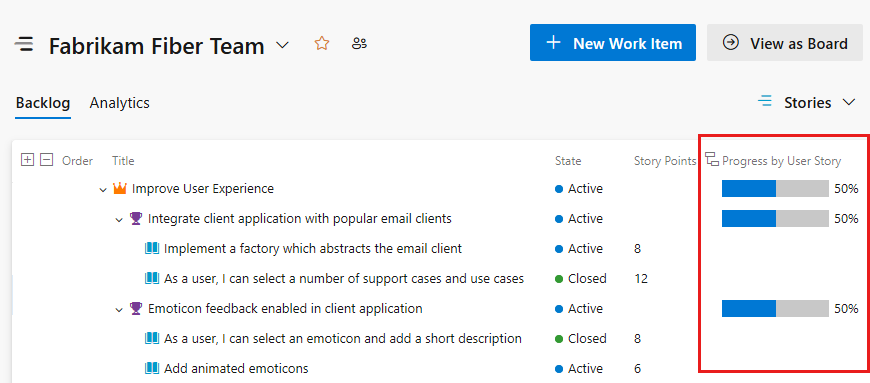
| Progress bar | Percentage of descendant items closed or completed. |
| Count | Total number of descendant items. |
| Total | Sum of a numeric field (for example, Effort, Story Points, Completed Work, or Remaining Work) across all descendants. |
The following example shows progress bars on a portfolio backlog:
Work with multi-team ownership of backlog items
In a project with multiple teams, hierarchical views can include items belonging to other teams. The following rules govern what's visible and what you can change:
| What's visible | Your team's backlog items (matched by area path), plus parent epics and features from other teams when Parents is on. |
|---|---|
| You can reorder | Only items in your team's area paths. |
| You can reparent | Items you own, plus items other teams own. |
| You can't change | Items marked with the information icon  . Another team owns them.
 |
Tip
Add the Node Name field as a column to identify which area path (and team) owns each item.
View backlog items and parent items owned by other teams
When Parents is on, your backlog shows the parent epic of any feature or backlog item your team owns, even if another team owns the parent.

For more information, see Define area paths and assign to a team.
View epics and child items owned by other teams
Drill into a portfolio backlog to view all child items, even those owned by other teams. For example, the Management team's Epics backlog expands to show features and backlog items owned by the Customer Service, Phone, and Web teams.

This split lets management teams focus on epics and features while development teams focus on the backlog items they deliver. A typical structure pairs two management teams with three development teams. For more information, see Create or add a team and Manage your product and portfolio backlogs.
Important
You can create child links to work items in other projects, but if the projects use different processes, the cross-project hierarchy isn't visible on the backlog. Open the work item form to view all associated child items.
Display leaf node work items
Keep each work item type in a flat list, and link parents and children only across different types — for example, epic to feature, feature to story, story to task. Avoid same-type hierarchies like story-to-story, bug-to-bug, or task-to-task.
If you create a same-category hierarchy, only the leaf node appears on boards, sprint backlogs, and taskboards. For example, in a four-level chain of tasks, only the fourth-level tasks show up.
For more information, see Troubleshoot reordering and nesting issues.
Product backlog controls
The product backlog toolbar groups controls into pivots, view options, and command menus. For full details, see Configure your backlog view.
Pivots
| Control | Description |
|---|---|
| Backlog | Show the work item list. |
| Analytics | Show in-context Analytics reports. |
Backlog selector 
|
Switch between portfolio, product, and sprint backlogs. |
View options 
| Toggle | Description |
|---|---|
| Parents | Show parent epics and features. Not available on the top-level portfolio backlog. |
| Forecasting | Estimate which items fit in upcoming sprints. Product backlog only. |
| In Progress items | Show or hide items in Active, Committed, or Resolved states. |
| Completed child items | Show or hide completed child items. |
| Mapping | Open the mapping pane to parent items by drag. Not available on the top-level portfolio backlog. |
| Planning | Open the planning pane to drag items into sprints. |
Toolbar actions
| Control | Description |
|---|---|
Filter 
|
Filter the backlog by keyword, tag, or field. |
Settings 
|
Manage teams and configure team tools. |
Expand/Collapse 

|
Expand or collapse one level of the hierarchy. |
Full screen 

|
Enter or exit full-screen mode. |
More commands 
|
Set column options, create a query, or send email. |
Important
When Parents is on, Create Query and Send email still only act on items at the currently selected backlog level.
Permissions and access
What you can do on a backlog depends on your access level and group membership:
| Access level or group | What you can do |
|---|---|
| Basic access | Full access to all backlog and board features. |
| Stakeholder access | View backlogs and boards, add and edit work items, but limited control over backlog ordering and configuration. For details, see Stakeholder access quick reference. |
| Contributors group | Use most features under Boards or Work (with Basic access). |
| Project Administrators group | Configure team settings, manage area and iteration paths, and customize backlog levels. |
For the full permission matrix, see Set work tracking permissions. To grant access, see Add users to a project or team.
Add portfolio backlogs and boards
To add a portfolio backlog or board, customize your process to add or modify work item types, then enable those types on the backlogs and boards you want.
Use the inherited process model:
Choose your process model:
| Process model | Reference |
|---|---|
| Inherited process | Customize an inherited process • Customize your backlogs or boards |
| On-premises XML | Customize work tracking • Add portfolio backlogs • Customize the On-premises XML process model |