Note
Access to this page requires authorization. You can try signing in or changing directories.
Access to this page requires authorization. You can try changing directories.
Microsoft Defender for Cloud provides security posture management and threat protection for workloads running in Google Cloud Platform (GCP).
This article shows you how to connect a GCP project or organization to Microsoft Defender for Cloud so Microsoft Defender for Cloud can discover resources, assess security posture, and surface security recommendations and alerts.
Authentication architecture
Microsoft Defender for Cloud uses federated authentication to securely access GCP APIs without storing long-lived credentials.
During onboarding, Defender for Cloud establishes trust with Google Cloud using workload identity federation and service account impersonation. Access is scoped to the connected project or organization and limited to the permissions required by the enabled Defender plans.
Learn more about authentication architecture for GCP connectors.
Prerequisites
Before you connect your GCP project, make sure you have:
A Microsoft Azure subscription. If you don't have an Azure subscription, you can sign up for a free one.
Microsoft Defender for Cloud enabled on your Azure subscription.
Access to a GCP project or organization.
Contributor-level permission for the relevant Azure subscription.
If you enable CIEM as part of Defender for CSPM, the user onboarding the connector also needs the Security Admin role and Application.ReadWrite.All permission for the tenant.
Cost considerations
Connecting GCP projects to Microsoft Defender for Cloud and enabling Defender plans can incur additional charges.
You can learn more about Defender for Cloud pricing on the pricing page.
You can also estimate costs with the Defender for Cloud cost calculator.
GCP project and subscription mapping
When connecting GCP projects to Azure subscriptions, consider the following:
- GCP projects are connected to Microsoft Defender for Cloud at the project level.
- You can connect multiple GCP projects to a single Azure subscription.
- You can connect multiple GCP projects across multiple Azure subscriptions.
Learn more about the Google Cloud resource hierarchy.
Connect your GCP project
Sign in to the Azure portal.
Search for and select Microsoft Defender for Cloud.
Go to Defender for Cloud > Environment settings.
Select Add environment > Google Cloud Platform.

Select the Subscription in which the security connector will be created.
Select the Resource group in which the security connector will be created.
Select the Location where the security connector will be created.
Select an interval to scan the GCP environment every 4, 6, 12, or 24 hours. Some data collectors run with fixed scan intervals and aren't affected by custom interval configurations.
Note
The following data collectors use a fixed scan interval:
Data collector name Scan interval ComputeInstance
ArtifactRegistryRepositoryPolicy
ArtifactRegistryImage
ContainerCluster
ComputeInstanceGroup
ComputeZonalInstanceGroupInstance
ComputeRegionalInstanceGroupManager
ComputeZonalInstanceGroupManager
ComputeGlobalInstanceTemplate1 hour Organization only: Enter the GCP organization ID.
Organization only: If needed, enter project numbers to exclude.
Organization only: If needed, enter folder IDs to exclude.
Single project only: Enter the GCP project number.
Single project only: Enter the GCP project ID.
Select Next: Select plans.
Note
As the Log Analytics agent (also known as MMA) retired in August 2024, all Defender for Servers features and security capabilities that currently depend on it, including those described on this page, will be available through either Microsoft Defender for Endpoint integration or agentless scanning, before the retirement date. For more information about the roadmap for each of the features that are currently rely on Log Analytics Agent, see this announcement.
Choose the Defender plans you want to enable.
Note
Each plan might incur charges. Learn more about Defender for Cloud pricing.

Select Next: Configure access.
Select the permissions type:
- Default access: Grants permissions required for current and future capabilities.
- Least privilege access: Grants only the permissions required today. You might receive notifications if additional access is needed later.
Follow the on-screen instructions to configure access between Defender for Cloud and your GCP environment.

The generated
gcloudscript is based on the scope and Defender plans you selected. Run the script in the GCP environment you're onboarding.The script creates the required resources in your GCP environment, including:
- Workload identity pool
- Workload identity provider (per plan)
- Service accounts
- Project level policy bindings (service account has access only to the specific project)
Note
The following APIs must be enabled on the project where you run the onboarding script:
iam.googleapis.comsts.googleapis.comcloudresourcemanager.googleapis.comiamcredentials.googleapis.comcompute.googleapis.com
When you onboard at the organization level, enable these APIs on the management project.
If these APIs aren't enabled, you can enable them during onboarding by running the GCP Cloud Shell script.
Select Next: Review and generate.
Review the connector details.
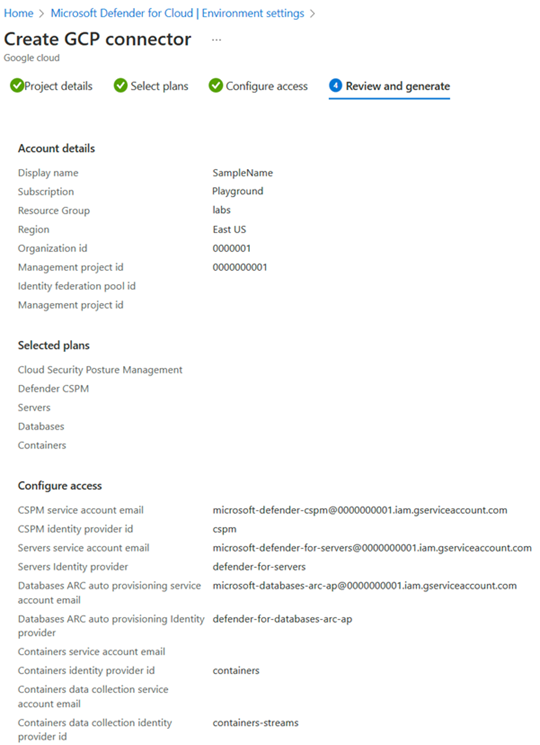
Select Create.


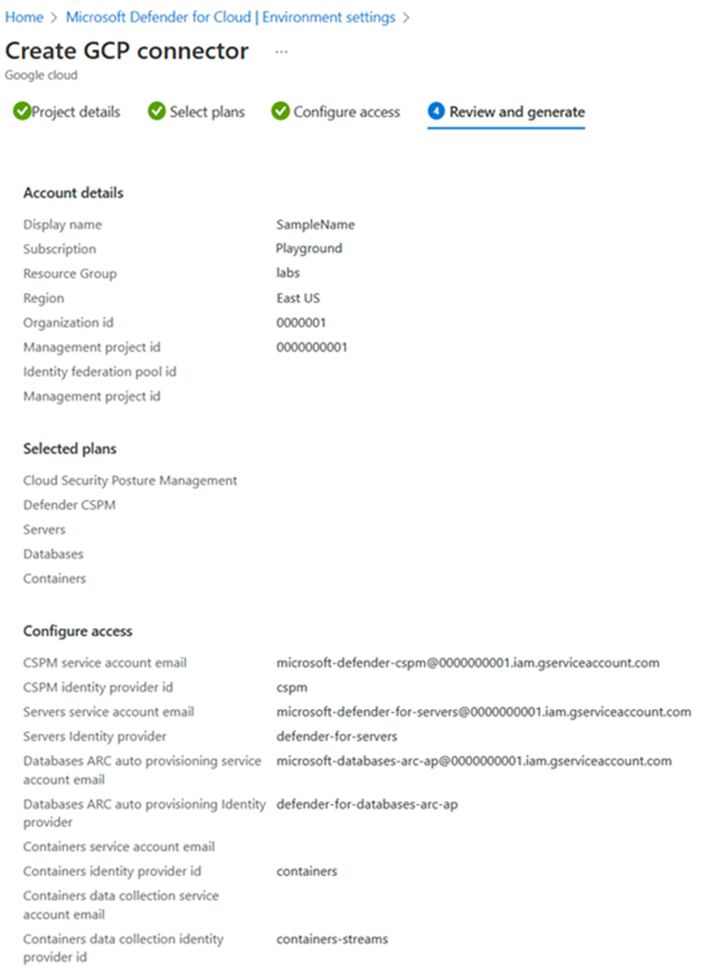
Defender for Cloud starts scanning your GCP resources. Security recommendations appear within a few hours. If you enabled autoprovisioning, Azure Arc and any enabled extensions are installed automatically for each newly detected resource.
Update GCP connector configuration
Update the GCP connector configuration when the permissions or resources required by Defender for Cloud change.
Update the configuration in the following cases:
- You enabled a new Defender plan, such as Defender CSPM, Defender for Databases, or Defender for Containers.
- You modified plan configuration, such as enabling auto provisioning or changing the selected scope.
- Microsoft released an updated onboarding script, such as a version that supports new features, fixes bugs, or updates permissions.
- You experience connector health issues related to missing permissions or missing GCP resources.
To update the configuration, return to the GCP connector in Defender for Cloud, generate the latest gcloud script for your selected scope and plans, and rerun the script in the GCP environment you're onboarding.
Validate connector health
To confirm that your GCP connector is operating correctly:
Sign in to the Azure portal.
Go to Defender for Cloud > Environment settings.
Locate the GCP project and review the Connectivity status column to see whether the connection is healthy or has issues.
Select the value shown in the Connectivity status column to view more details.
The Environment details page lists any detected configuration or permission issues affecting the connection to the GCP project.
If an issue is present, you can select it to view a description of the problem and the recommended remediation steps. In some cases, a remediation script is provided to help resolve the issue.
Learn more about troubleshooting multicloud connectors.
View your current coverage
Defender for Cloud provides access to workbooks through Azure workbooks. Workbooks are customizable reports that provide insights into your security posture.
The coverage workbook helps you understand your current coverage by showing which plans are enabled on your subscriptions and resources.
Enable GCP Cloud Logging ingestion (Preview)
GCP Cloud Logging ingestion enhances identity and permission insights by adding activity context for Cloud Infrastructure Entitlement Management (CIEM) assessments, risk-based recommendations, and attack path analysis.
Learn more about ingesting GCP Cloud Logging with Pub/Sub (Preview).