Note
Access to this page requires authorization. You can try signing in or changing directories.
Access to this page requires authorization. You can try changing directories.
Applies to:  Azure SQL Database
In this article, you learn about:
- Configuration options for Azure SQL Database that enable users to perform administrative tasks and access data stored in these databases.
- Access and authorization configuration after creating a new server.
- How to add logins and user accounts in the
masterdatabase and grant these accounts administrative permissions. - How to add user accounts in user databases, either associated with logins or as contained user accounts.
- How to configure user accounts with permissions in user databases by using database roles and explicit permissions.
- For Azure SQL Managed Instance, see Authorize database access to SQL Managed Instance.
- For Azure Synapse Analytics, see Authorize database access to Azure Synapse Analytics.
Note
Microsoft Entra ID was previously known as Azure Active Directory (Azure AD).
Authentication and authorization
Authentication is the process of proving the user is who they claim to be. A user connects to a database by using a user account.
When a user attempts to connect to a database, they provide a user account and authentication information. The user is authenticated by using one of the following two authentication methods:
-
By using this authentication method, the user submits a user account name and associated password to establish a connection. The
masterdatabase stores this password for user accounts linked to a login. The database containing the user accounts not linked to a login stores the password.Note
Azure SQL Database only enforces password complexity for password policy.
Microsoft Entra authentication for Azure SQL
By using this authentication method, the user submits a user account name and requests that the service use the credential information stored in Microsoft Entra ID (formerly Azure Active Directory).
Logins and users: You can associate a user account in a database with a login that the master database stores, or you can make it a user name that an individual database stores.
- A login is an account in the
masterdatabase, to which you can link a user account in one or more databases. By using a login, you store the credential information for the user account with the login. - A user account is an individual account in any database that might be, but doesn't have to be, linked to a login. By using a user account that isn't linked to a login, you store the credential information with the user account.
Authorization to access data and perform various actions is managed by using database roles and explicit permissions. Authorization refers to the permissions assigned to a user, and it determines what that user is allowed to do. Your user account's database role memberships and object-level permissions control authorization. As a best practice, grant users the least privileges necessary.
Existing logins and user accounts after creating a new database
When you first deploy an Azure SQL resource, specify a login name and a password for a special type of administrative login, the Server admin. During deployment, the following configuration of logins and users in the master and user databases occurs:
Important
Do not include any personal, sensitive, or confidential information in the server admin login name field. Data entered in this field is not considered customer data.
- The deployment process creates a SQL authentication login with administrative privileges by using the login name you specified. A login is an individual account for signing in to Azure SQL Database.
- The deployment process grants this login full administrative permissions on all databases as a server-level principal. The login has all available permissions and can't be limited.
- When this account signs into a database, it matches to the special user account
dbo(user account), which exists in each user database. The dbo user has all database permissions in the database and is member of thedb_ownerfixed database role. Additional fixed database roles are discussed later in this article.
To identify the Server admin account:
- Go to Azure SQL hub at aka.ms/azuresqlhub.
- In the resource menu, go to your Azure SQL Database logical server.
- Under Settings, select the Properties page.
- View the values for Server admin login or Microsoft Entra admin.
Important
You can't change the name of the Server admin account after you create it. To reset the password for the server admin, go to the Azure portal, select SQL Servers, select the server from the list, and then select Reset Password.
Create additional logins and users with administrative permissions
At this point, your SQL logical server is configured for access by using a single SQL authentication login and user account. To create additional logins with full or partial administrative permissions, use the following options.
Create a Microsoft Entra administrator account with full administrative permissions
Enable Microsoft Entra authentication and add a Microsoft Entra admin. You can configure one Microsoft Entra account as an administrator of the Azure SQL deployment with full administrative permissions. This account can be either an individual or security group account. You must configure a Microsoft Entra admin if you want to use Microsoft Entra accounts to connect to Azure SQL Database. For detailed information on enabling Microsoft Entra authentication for all Azure SQL deployment types, see the following articles:
In SQL Database, create SQL authentication logins with limited administrative permissions
- Create an additional SQL authentication login in the
masterdatabase.- Add the login to the
##MS_DatabaseManager##,##MS_LoginManager##, and##MS_DatabaseConnector##server level roles by using the ALTER SERVER ROLE statement.
- Add the login to the
Members of special
masterdatabase roles for Azure SQL Database have authority to create and manage databases or to create and manage logins. In databases created by a user that is a member of thedbmanagerrole, the member is mapped to thedb_ownerfixed database role and can sign in and manage that database by using thedbouser account. These roles have no explicit permissions outside of themasterdatabase.Important
You can't create an additional SQL authentication login with full administrative permissions in Azure SQL Database. Only the server admin account or the Microsoft Entra admin account (which can be a Microsoft Entra group) can add or remove other logins to or from server roles. This restriction is specific to Azure SQL Database.
- Create an additional SQL authentication login in the
Create accounts for nonadministrator users
Create accounts for nonadministrative users by using one of the following methods:
Create a login
Create a SQL authentication login in the
masterdatabase. Then create a user account in each database that the user needs to access and associate the user account with the login. Use this approach when the user needs to access multiple databases and you want to keep the passwords synchronized. However, this approach adds complexity when you use it with geo-replication because you must create the login on both the primary server and the secondary servers. For more information, see Configure and manage Azure SQL Database security for geo-restore or failover.Create a user account
Create a user account in the database that a user needs access to (also called a contained user).
By using this approach, the user authentication information is stored in each database and automatically replicated to geo-replicated databases. However, if the same account exists in multiple databases and you're using SQL authentication, you must keep the passwords synchronized manually. Additionally, if a user has an account in different databases with different passwords, remembering those passwords can become a problem.
Important
To create contained users mapped to Microsoft Entra identities, you must be logged in by using a Microsoft Entra account in the database in Azure SQL Database.
For examples that show how to create logins and users, see:
Tip
For a security tutorial that includes creating users in Azure SQL Database, see Tutorial: Secure a database in Azure SQL Database.
Using fixed and custom database roles
After creating a user account in a database, either based on a login or as a contained user, you can authorize that user to perform various actions and to access data in a particular database. Use the following methods to authorize access:
Fixed database roles
Add the user account to a fixed database role. There are nine fixed database roles, each with a defined set of permissions. The most common fixed database roles are: db_owner, db_ddladmin, db_datawriter, db_datareader, db_denydatawriter, and db_denydatareader. Use db_owner to grant full permission to only a few users. The other fixed database roles are useful for getting a simple database in development quickly, but aren't recommended for most production databases. For example, the db_datareader fixed database role grants read access to every table in the database, which is more than is strictly necessary.
To add a user to a fixed database role:
- In Azure SQL Database, use the ALTER ROLE statement. For examples, see ALTER ROLE examples.
Custom database role
Create a custom database role by using the CREATE ROLE statement. A custom role enables you to create your own user-defined database roles and carefully grant each role the least permissions necessary for the business need. Then add users to the custom role. When a user is a member of multiple roles, they aggregate the permissions of them all.
Grant permissions directly
Grant the user account permissions directly. There are over 100 permissions that you can individually grant or deny. Many of these permissions are nested. For example, the
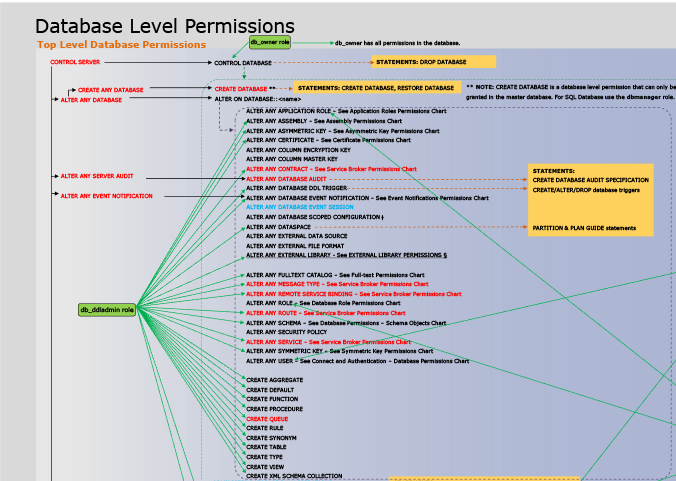
UPDATEpermission on a schema includes theUPDATEpermission on each table within that schema. As in most permission systems, the denial of a permission overrides a grant. Because of the nested nature and the number of permissions, it can take careful study to design an appropriate permission system to properly protect your database. Start with the list of permissions at Permissions (Database Engine) and review the poster size graphic of the permissions.
Using groups
Efficient access management assigns permissions to Microsoft Entra security groups and fixed or custom roles instead of to individual users.
When using Microsoft Entra authentication, put Microsoft Entra users into a Microsoft Entra security group. Create a contained database user for the group. Add one or more database users as a member to custom or built-in database roles with the specific permissions appropriate to that group of users.
When using SQL authentication, create contained database users in the database. Place one or more database users into a custom database role with specific permissions appropriate to that group of users.
Note
You can also use groups for noncontained database users.
Familiarize yourself with the following features that you can use to limit or elevate permissions:
- Impersonation and module-signing can be used to securely elevate permissions temporarily.
- Row-Level Security can be used to limit which rows a user can access.
- Dynamic data masking can be used to limit exposure of sensitive data.
- Stored procedures can be used to limit the actions that can be taken on the database.