Note
Access to this page requires authorization. You can try signing in or changing directories.
Access to this page requires authorization. You can try changing directories.
Virtual machines in Azure automatically send host-level metrics to Azure Monitor, which provide insights into the overall performance and health of the virtual machine. For complete monitoring though, you also need to collect guest-level performance data from the virtual machine, which provides insights into the applications, components, and processes running on the machine and their performance and health.
Note
- To enable monitoring using command line tools such as CLI and PowerShell, see Enable VM monitoring in Azure Monitor.
- For virtual machine scale sets, see Tutorial: Enable monitoring for an Azure virtual machine scale set.
In this tutorial, you learn how to:
- Enable enhanced monitoring for a virtual machine, which installs Azure Monitor Agent and begins data collection.
- Choose between metrics-based (recommended) and logs-based (classic) experiences.
- Enable recommended alerts for the virtual machine.
- Inspect graphs analyzing performance data collected from the virtual machine.
Prerequisites
To complete this tutorial, you need the following:
- Azure virtual machine to monitor
- Managed identity with Monitoring Reader role (or a custom role with equivalent permissions) on the VM or the Azure Monitor workspace if you enable recommended alerts with OpenTelemetry metrics enabled.
Note
As part of the Azure Monitor Agent installation process, Azure assigns a system-assigned managed identity to the machine if such an identity doesn't already exist.
Enable enhanced monitoring
Select Monitor from your virtual machine's menu in the Azure portal. This shows common monitoring data collected for the machine. Host metrics showing CPU, network, and disk utilization are available by default. If enhanced monitoring hasn't been enabled, then several of the performance charts show no data, and you'll receive a message offering to enable it. Click Configure to open the Configure monitor page.

Enable metrics to collect
Leave OpenTelemetry metrics selected since this experience is available at no cost. You can choose to also select the logs-based option so you can compare the different experience between the two. For a complete description of the differences between these two experiences, see Compare metrics-based and logs-based experiences.
Customize monitoring configuration
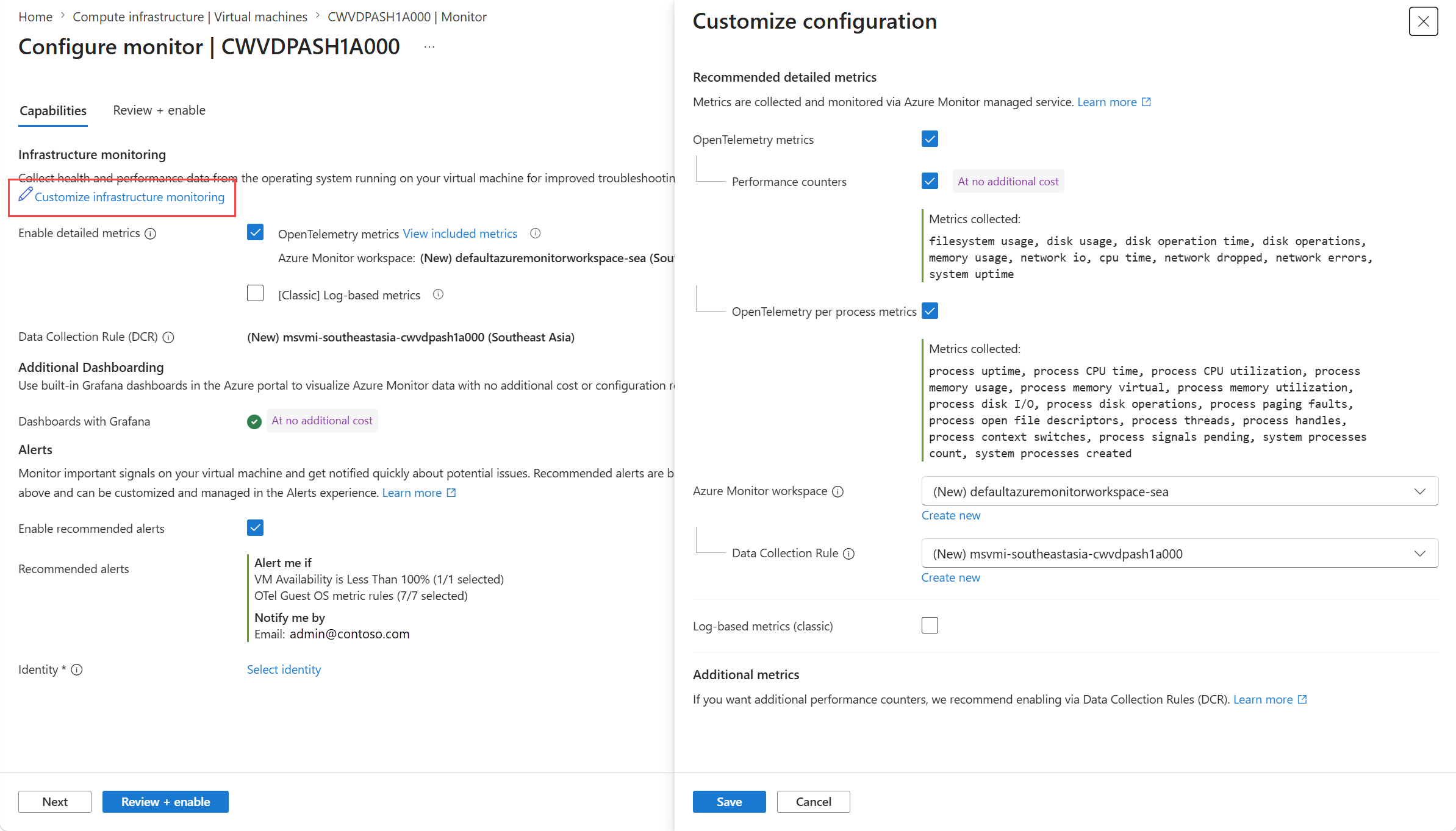
Select Customize infrastructure monitoring to open the customization options for the current machine.
Select workspaces
Depending on your metrics selection, a default Azure Monitor workspace (OpenTelemetry metrics) and Log Analytics workspace (log-based metrics) are selected for you. If they don't already exist, then they'll be created for you in the same region as the virtual machine. You can select an existing workspace if you prefer or select Create new to create a new one with a different name as the default.
Select performance counters
For OpenTelemetry metrics, a standard set of performance counters are collected at no cost. These are listed in the Performance counters section. Optionally, leave OpenTelemetry per process metrics enabled to gather a more detailed recommended set of metrics which do incur additional cost. See Azure Monitor pricing.
You can't customize the performance counters collected by log-based metrics.
Select data collection rule
Monitoring configurations are stored in data collection rules (DCR). A single DCR is created by default for the current virtual machine for both OpenTelemetry metrics and logs-based metrics. Alternatively, you can select an existing DCR. This allows you to reuse existing configurations for multiple machines to reduce the complexity of your monitoring environment. Have a new DCR created for your first virtual machine and then use that DCR for any additional machines that you enable.
Enable recommended alerts
Leave Enable recommended alerts checked to automatically create alert rules based on the monitoring configuration. If OpenTelemetry metrics are enabled, the alert rules will be based on those metrics even if log-based metrics are also enabled. If only log-based metrics are enabled, the alert rules will be based on VM host metrics.
An action group is also created that includes the email address of the user who enabled the monitoring.
Important
If OpenTelemetry metrics are used for the alert rules, then you must select a managed identity as specified in Prerequisites.
Save
Select Review + Enable and then Enable After a few minutes, the Azure Monitor agent is installed on the virtual machine, and data will start being collected.
View performance data
It will take a few minutes after the agent is installed for enough data to be collected to populate the portal. When both experiences are enabled for a VM, you get a selector at the top to choose the experience you want to view. Select each experience to compare the different charts and insights that are available.
The metrics-based experience provides a set of charts focused on key performance indicators for the virtual machine. It also incorporates status from Service Health and Resource Health to give you a quick view of the machine's overall health.
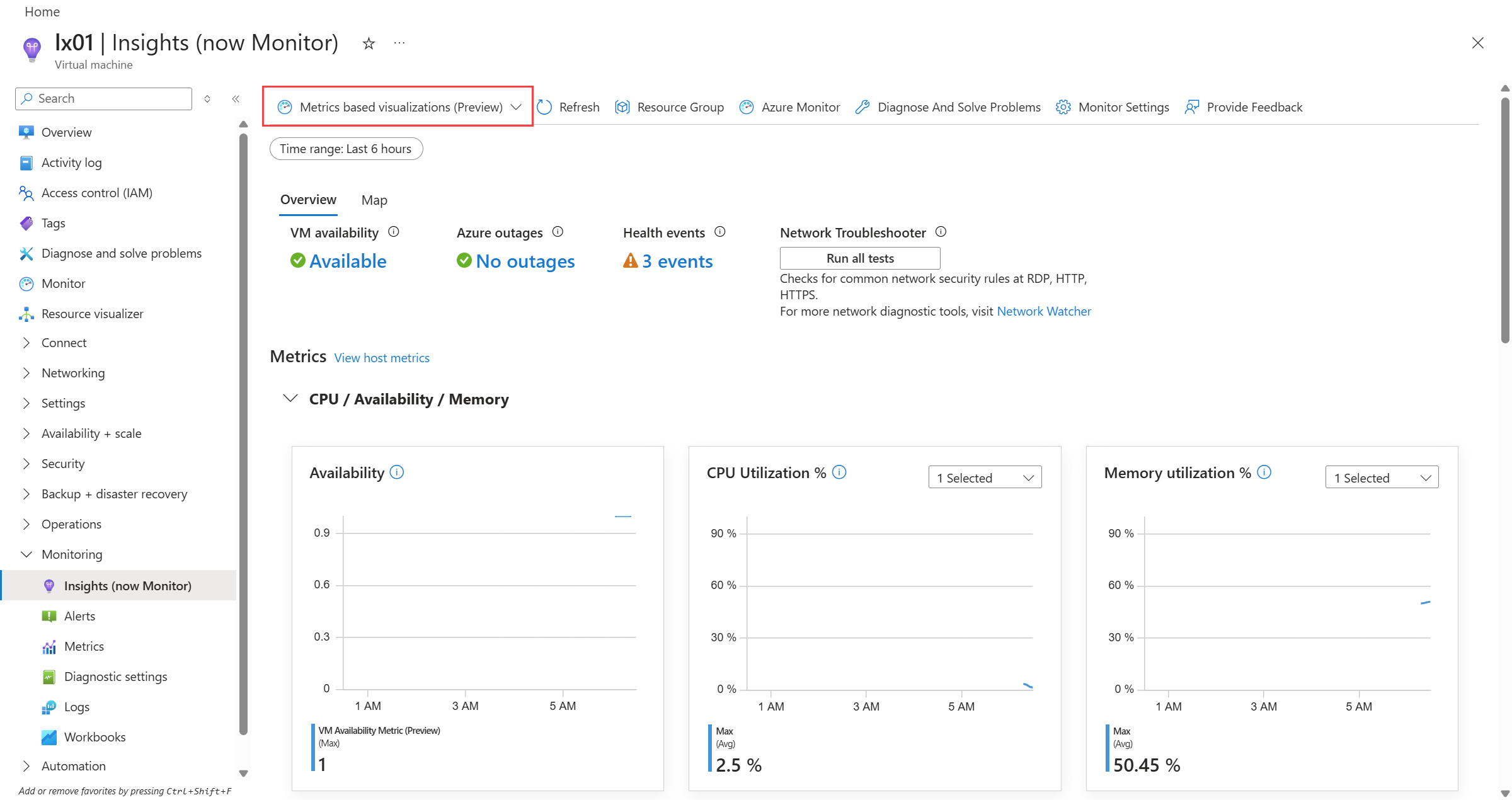
The logs-based experience uses summarized performance data collected in the Log Analytics workspace to populate a set of charts that allow you to analyze the performance of different components of the machine such as CPU, disk, and network over time.

View Grafana dashboards
Azure Monitor dashboards with Grafana delivers Grafana dashboards directly in the Azure portal. It's automatically available at no cost and with no configuration requirements. Use Dashboards with Grafana for Azure Virtual Machines to view collected data for multiple machines.
Next steps
Now that you have enabled enhanced monitoring for your virtual machine, collect guest logs such as Windows event logs or Syslog from the virtual machine.