Note
Access to this page requires authorization. You can try signing in or changing directories.
Access to this page requires authorization. You can try changing directories.
APPLIES TO: Basic v2 | Standard v2 | Premium | Premium v2
Set up a workspace to enable an API team to manage and productize their own APIs, while providing the API platform team with the tools to observe, govern, and maintain the API Management platform. After you create a workspace and assign permissions, workspace collaborators can create and manage their own APIs, products, subscriptions, and related resources.
Note
- New! The workspaces feature is now available in the Basic v2 and Standard v2 tiers, in addition to the Premium and Premium v2 tiers. Workspaces in the v2 tiers can be associated with either the default API Management managed gateway or a separate workspace gateway resource, providing flexibility in how you configure and scale your workspaces.
- For pricing considerations, see API Management pricing.
Follow the steps in this article to:
- Create an API Management workspace associated with the instance's default managed gateway, or associated with a new or existing workspace gateway.
- Optionally, isolate a workspace gateway in an Azure virtual network.
- Assign permissions to the workspace.
Note
- Currently, creating a workspace gateway is a long-running operation that can take up to three hours or more to complete.
- Associating multiple workspaces with a workspace gateway is available only for workspace gateways created after April 15, 2025. Learn more about shared workspace gateways.
Prerequisites
- An API Management instance. If you need one, create it in a supported tier.
- Owner or Contributor role on the resource group where the API Management instance is deployed, or equivalent permissions to create resources in the resource group.
- (Optional) A subnet in a new or existing Azure virtual network to isolate a workspace gateway's inbound and outbound traffic. For configuration options and requirements, see Network resource requirements for workspace gateways.
- (Optional, for associating the default managed gateway with a workspace) A REST client to call the API Management REST API.
Create a workspace and associate the default managed gateway - REST API
You can create a workspace that routes API traffic through the service's default managed gateway instead of to a workspace gateway. This option avoids the extra cost and complexity of a separate gateway resource. API traffic routes through the service's default hostname (for example, <service-name>.azure-api.net).
Note
Currently, creating a workspace and associating the default managed gateway is only supported in the v2 tiers and via the API Management REST API.
Use the Workspace - Create or Update REST API to create a workspace.
PUT https://management.azure.com/subscriptions/{subscriptionId}/resourceGroups/{resourceGroupName}/providers/Microsoft.ApiManagement/service/{serviceName}/workspaces/{workspaceId}?api-version=2024-05-01
Authorization: Bearer {token}
Content-Type: application/json

{
  "properties": {
    "displayName": "my workspace",
    "description": "Workspace using default managed gateway",
    "serveOn": "workspaceAndDefault"
  }
}
Replace:
{subscriptionId}with your Azure subscription ID{resourceGroupName}with the resource group name of your API Management instance{serviceName}with the name of your API Management instance{workspaceId}with a unique workspace identifier (alphanumeric, hyphens allowed)
A successful response returns HTTP 201 Created with the workspace resource. By default, the workspace routes API traffic through the service's default hostname.
After the workspace is created, proceed to Assign users to workspace - portal to configure access permissions.
Create a workspace and associate a workspace gateway - portal
Sign in to the Azure portal, and go to your API Management instance.
In the left menu, under APIs, select Workspaces > + Add.
On the Basics tab, enter a descriptive Display name, resource Name, and optional Description for the workspace. Select Next.
On the Gateway tab, configure settings for the workspace gateway.
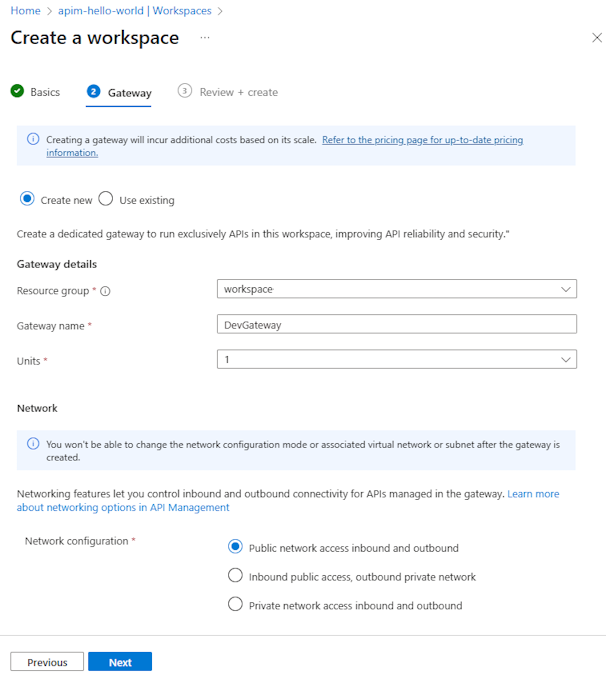
Select Create new to create a new workspace gateway, or select Use existing to associate the workspace with an existing gateway that has other workspaces deployed on it.
If you choose to create a new gateway:
In Gateway details, enter a new gateway name and select the number of scale Units. The gateway costs are based on the number of units. For more information, see API Management pricing.
In Network, select a Network configuration for your workspace gateway.
Important
Plan your workspace's network configuration carefully. You can't change the network configuration after you create the workspace.
If you select either Inbound public access, outbound private access (virtual network integration) or Inbound private access, outbound private access (virtual network injection), select a Virtual network and Subnet to isolate the workspace gateway, or create a new one. For network requirements, see Network resource requirements for workspace gateways.
Select Next. After validation completes, select Create.
Note
Creation of a new workspace gateway, if selected, can take up to several hours to complete. To track the deployment progress in the Azure portal, go to the gateway's resource group. In the left menu, under Settings, select Deployments.
After the deployment completes, the new workspace appears in the list on the Workspaces page. Select the workspace to manage its settings and resources.
Note
- To view the gateway runtime hostname and other gateway details, select the workspace in the portal. Under Deployment + infrastructure, select Gateways, and select the name of the workspace's gateway.
- While the workspace gateway is being created, runtime calls to the workspace's APIs don't succeed.
Assign users to workspace - portal
After creating a workspace, assign permissions to users to manage the workspace's resources. Each workspace user must be assigned both a service-scoped workspace RBAC role and a workspace-scoped RBAC role, or granted equivalent permissions by using custom roles.
If the workspace uses a workspace gateway resource, also assign workspace users an Azure-provided RBAC role scoped to the workspace gateway.
Note
For easier management, set up Microsoft Entra groups to assign workspace permissions to multiple users.
- For a list of built-in workspace roles, see How to use role-based access control in API Management.
- For steps to assign a role, see Assign Azure roles using the portal.
Assign a service-scoped role
Sign in to the Azure portal, and go to your API Management instance.
In the left menu, select Access control (IAM) > + Add.
Assign one of the following service-scoped roles to each member of the workspace:
- API Management Service Workspace API Developer
- API Management Service Workspace API Product Manager
Assign a workspace-scoped role
In the menu for your API Management instance, under APIs, select Workspaces > the name of the workspace that you created.
In the Workspace window, select Access control (IAM) > + Add.
Assign one of the following workspace-scoped roles to the workspace members so they can manage workspace APIs and other resources:
- API Management Workspace Reader
- API Management Workspace Contributor
- API Management Workspace API Developer
- API Management Workspace API Product Manager
Assign a gateway-scoped role
Sign in to the Azure portal, and go to your API Management instance.
In the left menu, under APIs, select Workspaces > the name of your workspace.
In the left menu of the workspace, select Gateways, and select the workspace gateway.
In the left menu, select Access control (IAM) > + Add.
Assign one of the following roles to each member of the workspace. At minimum, assign the Reader role to view the gateway's settings. Owners and Contributors can manage the gateway's settings, including scaling the gateway.
- Owner
- Contributor
- Reader
Enable diagnostic settings for monitoring workspace APIs
Configure settings to collect Azure Monitor logs for the workspace and send them to a Log Analytics workspace. The workspace team can monitor their own APIs while the API platform team can access centralized logs for the API Management instance. See the following diagram:

To collect Azure Monitor logs for the workspace, you need diagnostic settings at both the service and workspace levels:
First, enable a diagnostic setting at the service level for collection of API Management gateway logs, if a setting isn't already enabled. Send logs to a Log Analytics workspace. For more information, see Configure diagnostic settings for API Management.
Then, enable a diagnostic setting at the workspace level to send API Management gateway logs to the same Log Analytics workspace. This setting collects logs for all workspace gateways associated with the workspace.
Important
A diagnostic setting at the service level configures logging across the API Management instance, including workspaces that have a workspace-level diagnostic setting enabled. If you don't enable a workspace-level diagnostic setting, the workspace's gateway logs aren't collected or aggregated into Log Analytics.
Note
By default, members of the workspace team assigned the built-in workspace RBAC roles don't have permissions to edit diagnostic settings in a workspace. The API platform team has those permissions.
To configure a workspace diagnostic setting for collection of workspace-level gateway logs:
Sign in to the Azure portal, and go to your API Management instance.
In the left menu, under APIs, select Workspaces > the name of your workspace.
In the left menu of the workspaces, under Monitoring, select Diagnostic settings > + Add diagnostic setting.
On Diagnostic setting, enter or select details for the setting:
- Diagnostic setting name: Enter a descriptive name.
- Category groups: Optionally make a selection for your scenario.
- Under Categories, select Logs related to ApiManagement Gateway to collect gateway logs for APIs in this workspace.
- Under Destination details, select to send logs to the same Azure Log Analytics workspace specified in the service-level diagnostic setting and in other workspace-level diagnostic settings.
- Select Save.
Note
- Currently, you can only collect gateway logs for workspaces.
- You can access workspace-level logs by going to Monitoring > Logs in the left menu of the workspace.
Get started with your workspace
Depending on their role in the workspace, users might have permissions to create APIs, products, subscriptions, and other resources, or they might have read-only access to some or all of these resources.
To get started managing, protecting, and publishing APIs in a workspace, see the following guidance.